How will this help?
You can now play MU ORIGIN 3 ASIA with improved graphics on BlueStacks 5. Embark on an epic journey full of peril and challenges without missing out on a single detail!
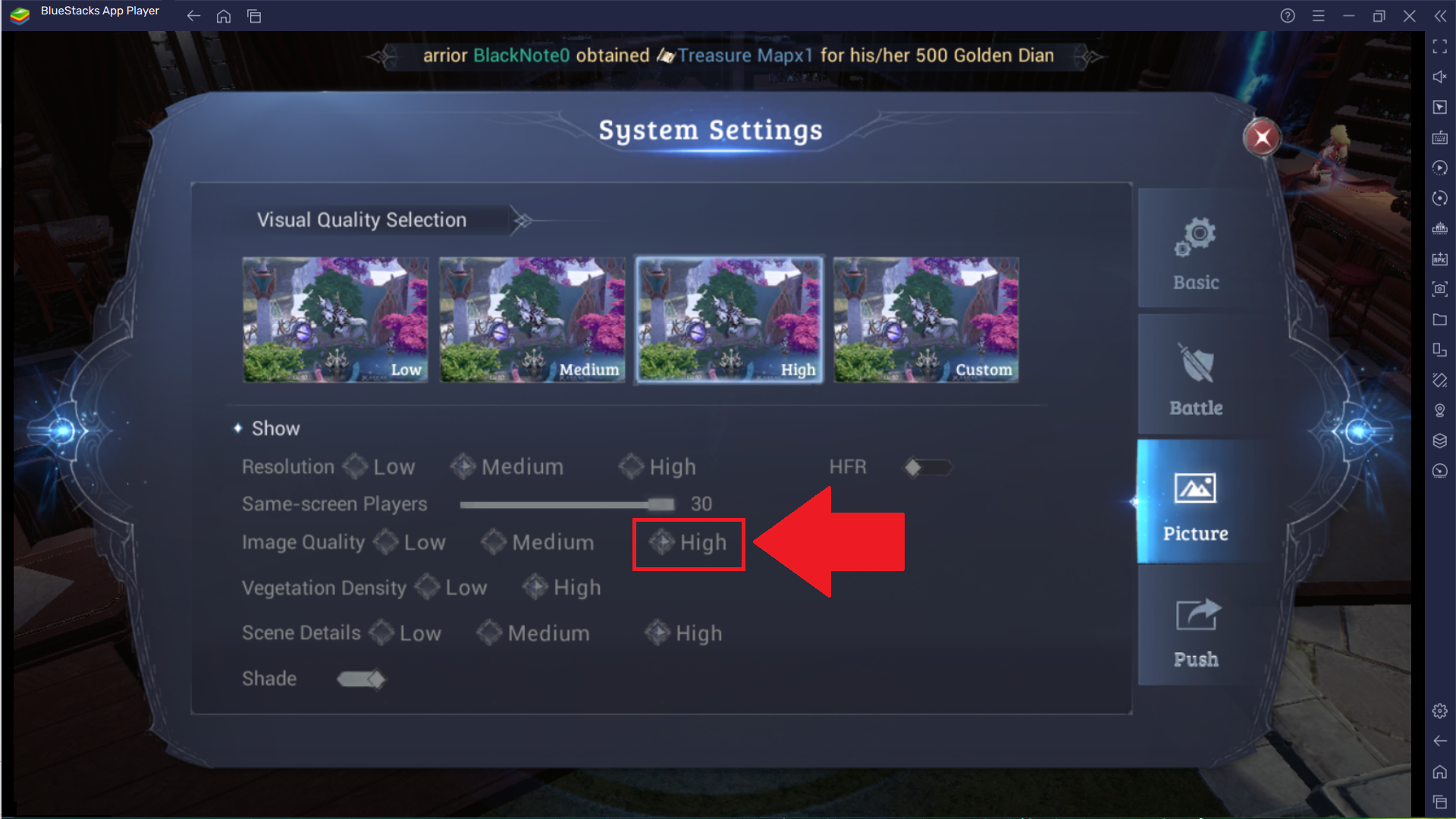
You can achieve this by setting the "Image Quality" to "High" within the in-game settings.
Are you ready to unleash destructive skills onto your foes and experience the thrill of fast-paced combat? Step into the world of MU ORIGIN and get ready to live out your ideal fantasy.
How can I do this?
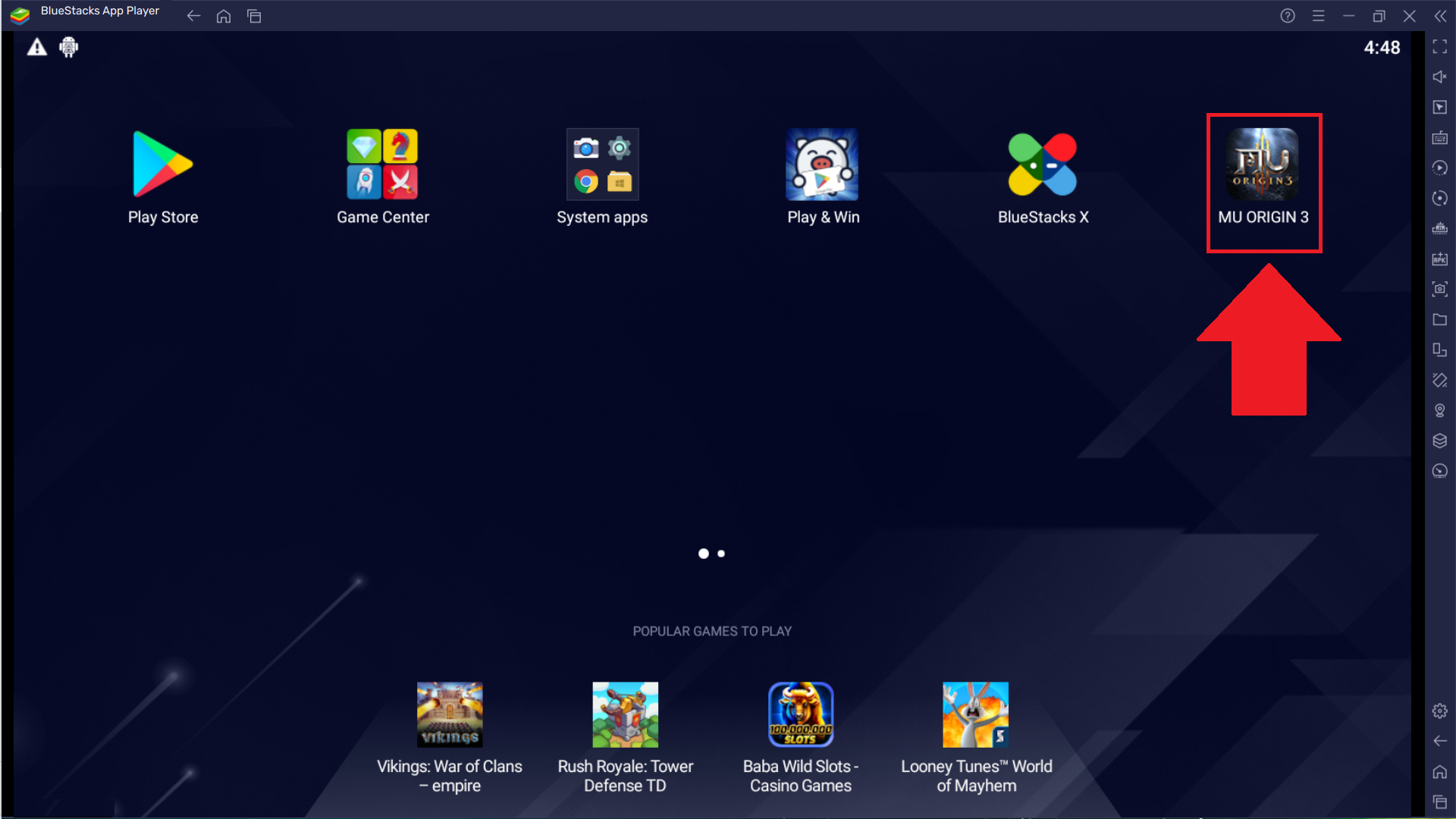
1. Launch MU ORIGIN 3 ASIA from your BlueStacks 5 home screen.
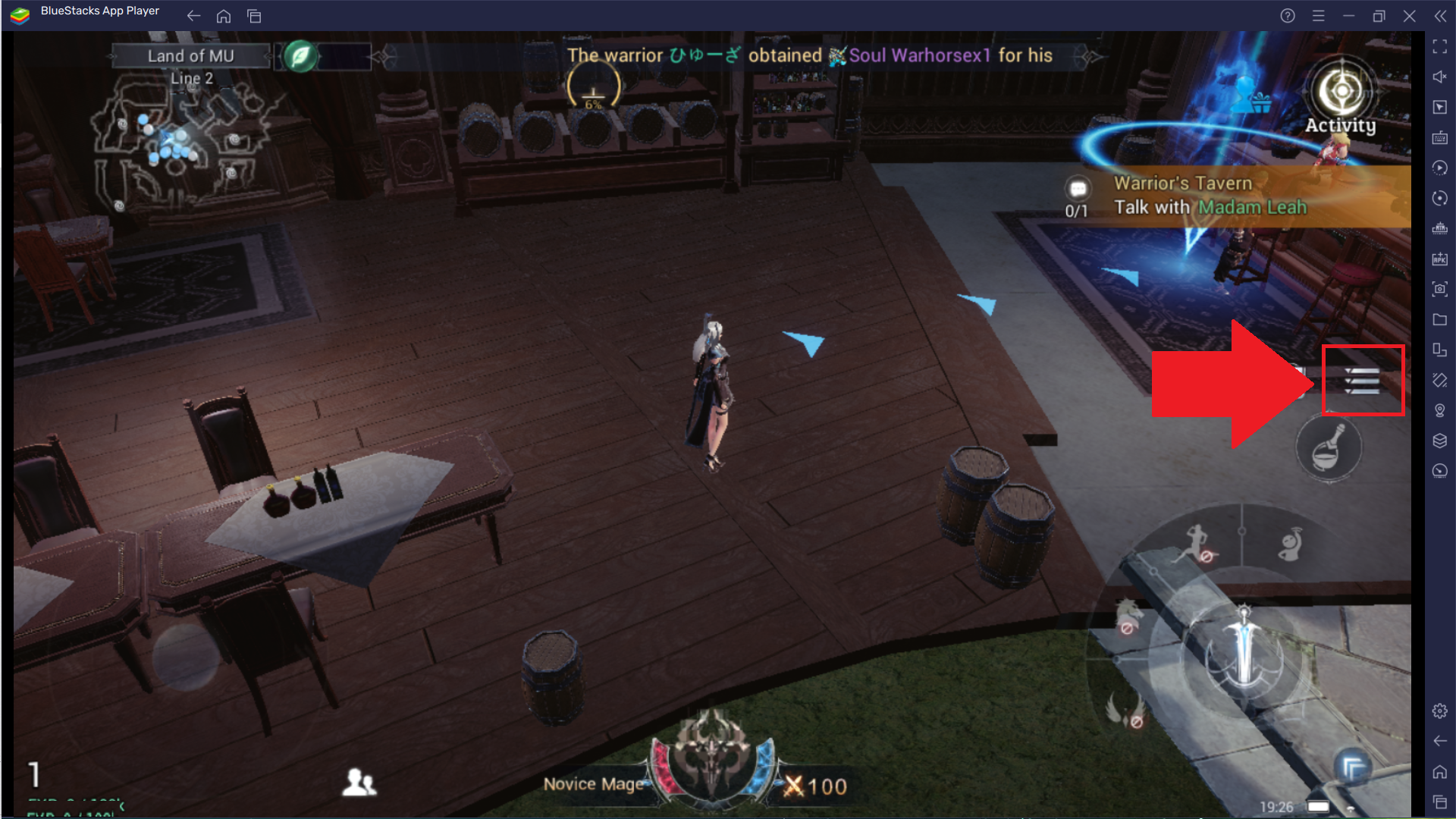
2. Select the hamburger icon from the right side of your screen, as shown below.
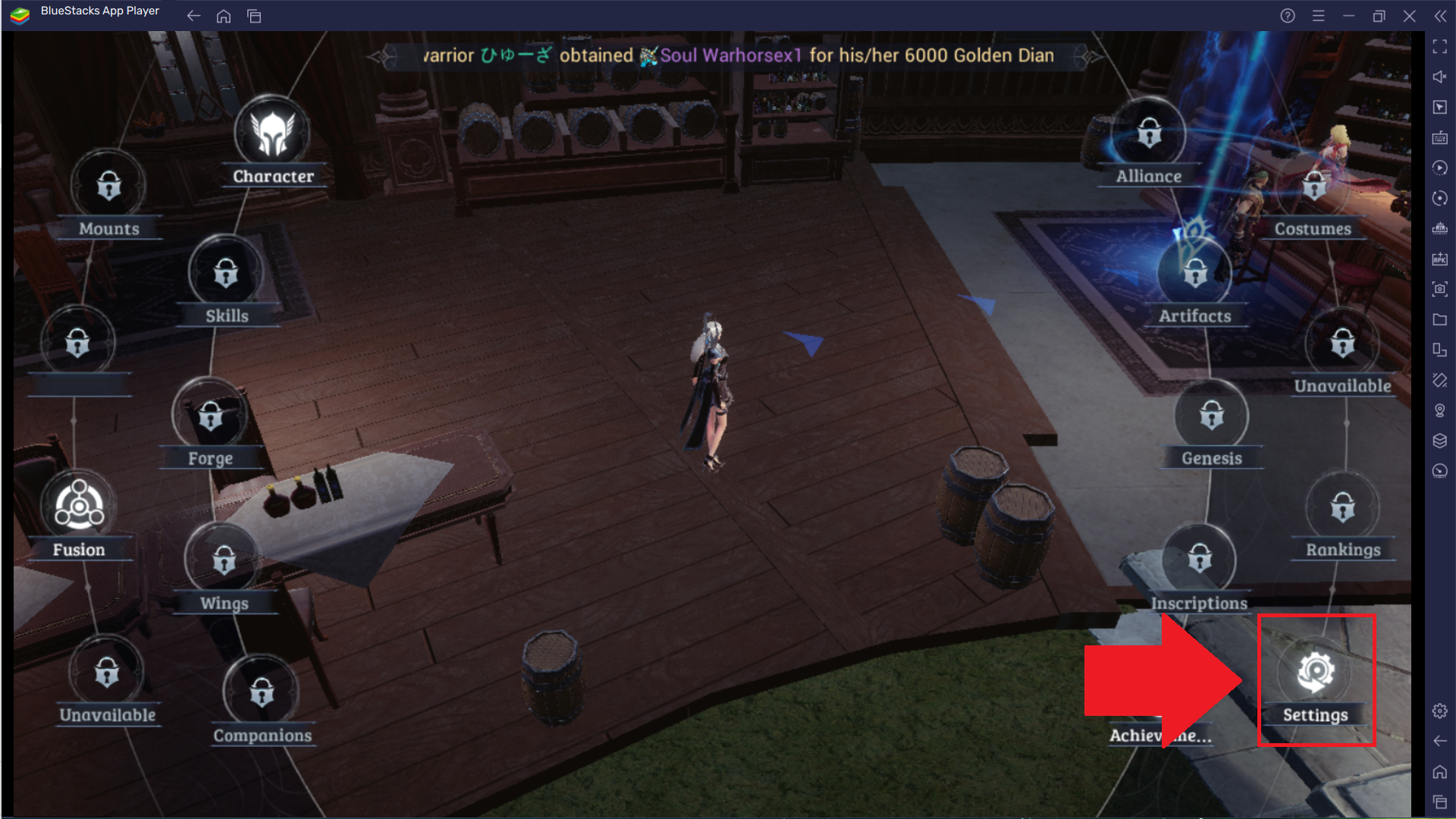
3. Click on the gear icon to access the in-game settings menu.
4. Navigate to the "Picture" option.
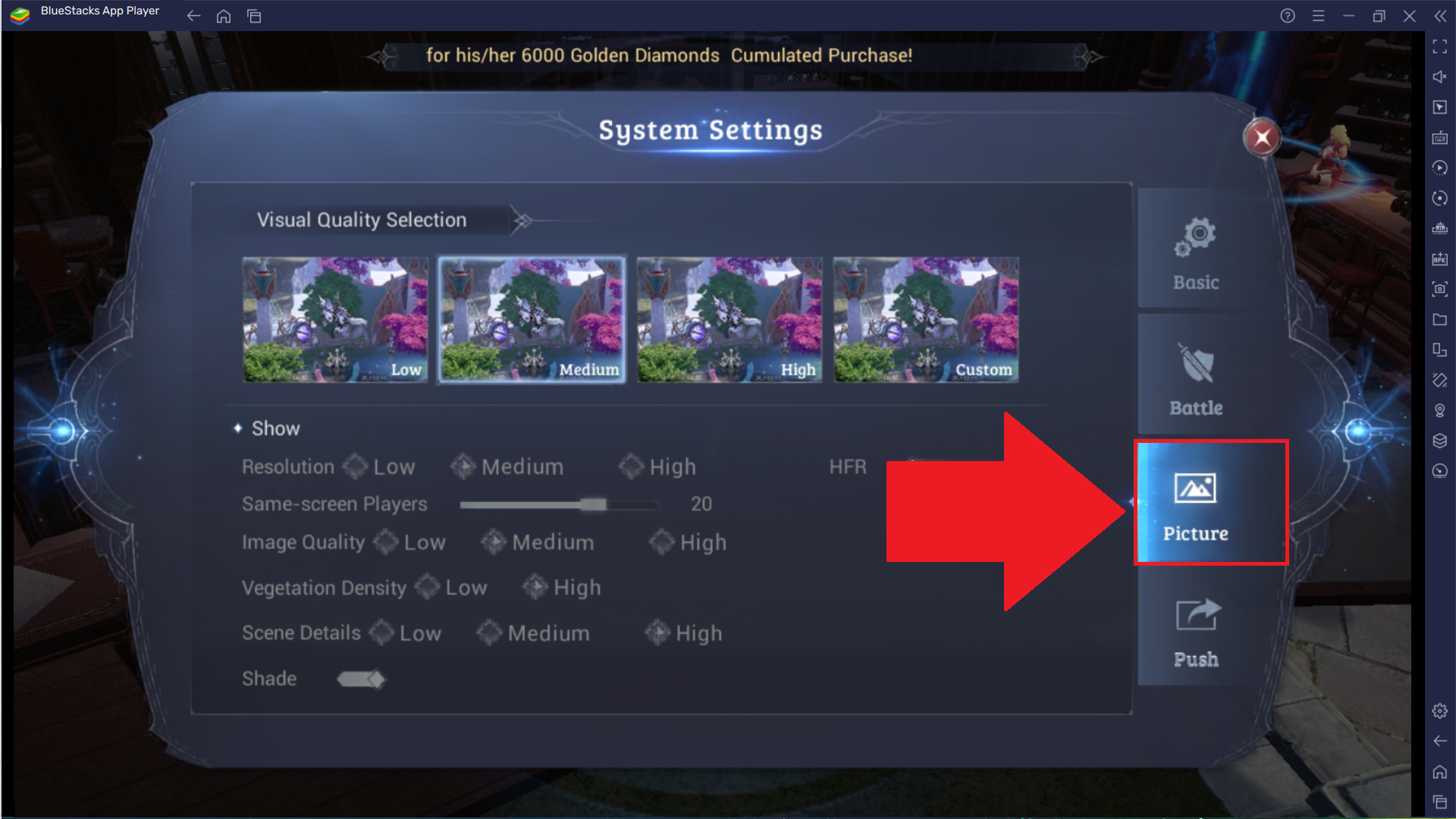
5. Set "Image Quality" at "High".
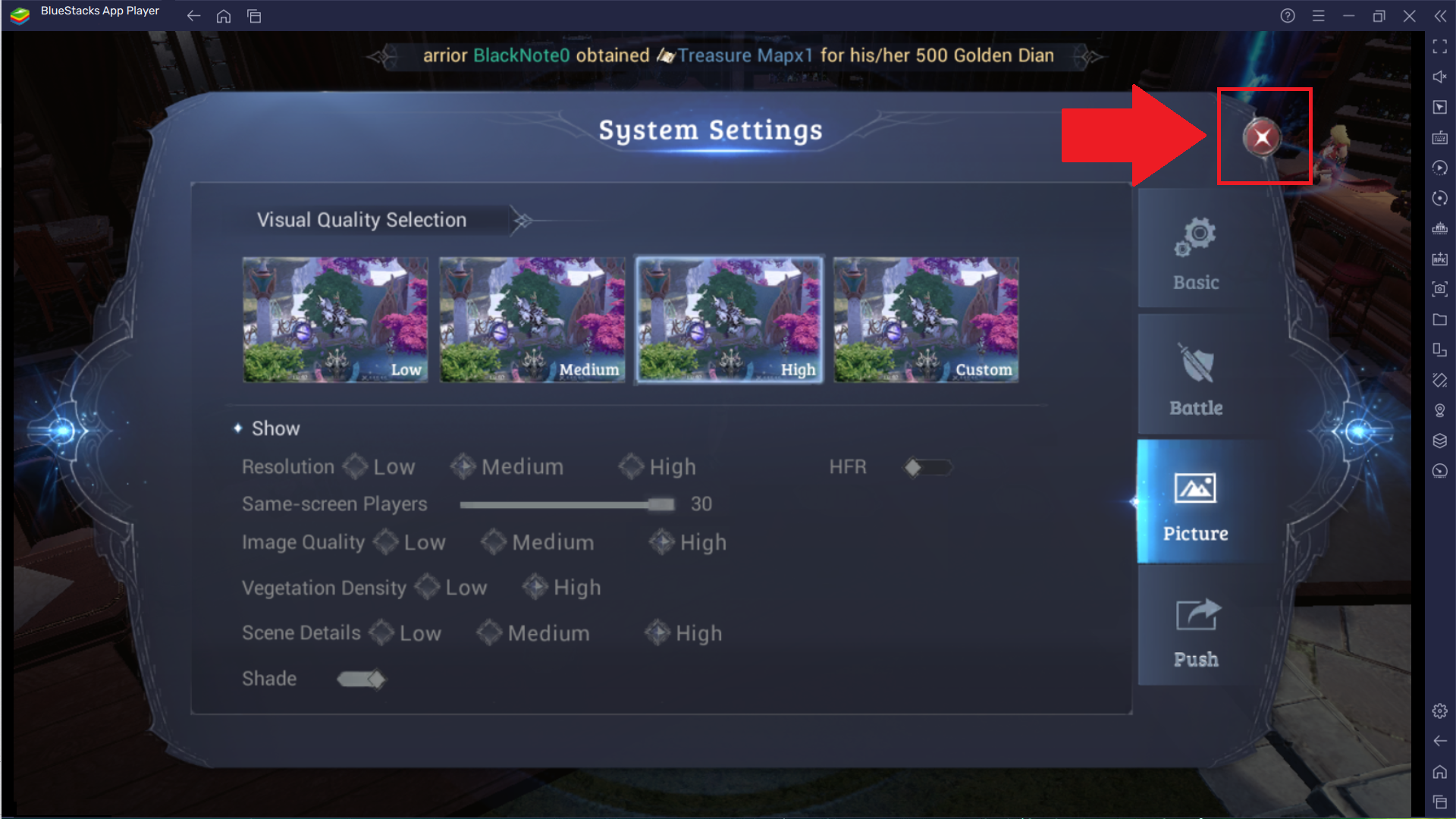
6. Once you have made the desired selections, click on the "X" in the top right corner of the screen to exit to the game lobby.
You are now all set to unleash extraordinary skills to wipe out your enemies when you play MU ORIGIN 3 ASIA with improved graphics on BlueStacks 5.
Thank you for choosing BlueStacks 5. We hope you enjoy using it. Happy Gaming!