كيف سيساعد هذا؟
سيساعدك هذا الدليل التفصيلي على تحسين تجربة اللعب الخاصة بك عن طريق إنشاء نصوص سهلة الاستخدام لمختلف الإجراءات التي يتم تنفيذها أثناء اللعب.
هذه المقالة سوف تجيب على الأسئلة التالية:
- What commands are available on BlueStacks for running scripts
- How to open the Controls Editor to create a script
- How to use the Controls Editor to create a script
قبل قراءة المزيد ، شاهد هذا الفيديو لمعرفة كيفية استخدام البرامج النصية على BlueStacks.
أوامر على BlueStacks لتشغيل البرامج النصية
النصوص البرمجية عبارة عن تسلسل من الإجراءات (مثل ضغطات المفاتيح ونقرات الماوس والتأخيرات وما إلى ذلك) التي يمكن تشغيلها بواسطة مفتاح معين. إنها ميزة قوية لتوسيع عنصر التحكم الحالي في تعيين المفاتيح. يمكنك تحديد أي تسلسل عمل كما تريد وتنشيطها باستخدام مفتاحك الخاص.
فيما يلي الأوامر المتاحة للنصوص على BlueStacks:
| Keyword | Syntax | Short Description |
| # | # this is a comment | Comments begin with #. Everything until the end of the line is considered comment and is ignored. A comment can be on a line by itself or can be placed at the end of a command on the same line. |
| keyDown | keyDown key e.g. keyDown TAB |
Key is pressed and is not released until the keyup is encountered for the same key. Mapping for the key is executed if one exists; otherwise, the key down input is forwarded to android. |
| keyDown2 | keyDown2 key e.g. keyDown2 TAB |
Key is pressed and is not released until the keyup is encountered for the same key. Mapping is not executed and key down input is forwarded to android. |
| keyUp | keyUp key e.g. keyup TAB |
Key is released. Mapping is executed if one exists; otherwise, key up input is forwarded to android. |
| keyUp2 | keyup2 key e.g. keyup2 TAB |
Key is released. Mapping is not executed and key up input is forwarded to android. |
| mouseDown | mouseDown x y e.g. mouseDown 44.0 55.5 |
Mouse left button is pressed at location x, y. All locations are in screen percentages so that the same script can work across different resolutions. |
| mouseUp | mouseUp | Mouse left button is released. No coordinates are required. |
| mouseMove | mouseMove x y e.g. mouseMove 4.56 5.67 |
Mouse moves to new location x, y |
| touch | touch x1 y1 x2 y2 x3 y3 e.g. # 3 fingers touch 4 5 6 7 8 9 # 3rd finger lifted touch 4 5 6 7 # fingers 1 and 2 move touch 5 6 7 8 # fingers 1 and 2 lifted touch |
Touch input with the current set of touchpoints specified. Series of touch commands can be used to create arbitrary multi-touch input. Up to 16 touchpoints are supported. But keep in mind that other touchpoints from other controls are aggregated before sending to android. |
| text | text “text” text backspace 2 e.g. text “hello world” |
Send text input to android. This can be in any language. The format should be utf8. |
| mouseWheel | mouseWheel x y d mouseWheel 44.0 55.5 1 mouseWheel 44.0 55.5 -1 |
Send mousewheel event to keymapping which will convert it to zoom or scroll accordingly |
| wait | wait msecs e.g. wait 24 |
Waits for the specified number of milliseconds before executing the next command. |
بدائية المستوى الأعلى.
| Keyword | Syntax | Short Description |
| onMouseMove | onMouseMove |
This provides finer control over execution of script. Different sets of commands can be provided for executing when the mouse is moved.
Commands following the onMouseMove command are executed when the trigger key is pressed and mouse cursor is moved |
| dTouch |
dTouch x+a y+b x+c y+d… x+u x+v # take two touch points x+3 y x-3 y dTouch x+3 y x-3 y |
dTouch can be used to make a touch gesture on screen with offset to current mouse location x y. Multiple points may be specified to generate the touch point.
a,b,c,d are offsets of the touch points from the current mouse location x y. |
| abort | abort |
Abort execution of the script. |
| tap | tap x1 y1 x2 y2 … xn yn delay |
This does a tap gesture. Single or multiple touchpoints can be specified. The touchpoint(s) are held for a specified delay. If the delay is not specified it is assumed to be 50msec. Delay is specified in milliseconds. This is the amount of time the entire swipe gesture takes. |
| swipe | swipe x1 y1 x2 y2 … xn yn delay e.g. # swipe 4,5 to 40,45 # take 100msecs swipe 4 5 40 45 100 |
Do a swipe gesture. Multiple points may be specified which the swipe goes through. Delay is specified in milliseconds. This is the amount of time the entire swipe gesture takes. |
| loop / loopEnd | loop n . . loopEnd |
Commands following loop command until loopEnd are executed n times. If n is not specified the loop continues indefinitely or until the macro trigger key is released. |
| onRelease | onRelease | This provides finer control over the execution of the script. A different set of commands can be provided for executing when the trigger key is pressed and released. All commands from the top of the script until the onrelease command are executed when trigger key is pressed. Commands following the onrelease command are executed when trigger key is released. |
| enterShoot | enterShoot | Enter shooting mode used to play FPS games. If a Pan control does not exist in the current scheme this is ignored. If shooting mode is already enabled this has no effect. |
| exitShoot | exitShoot | Exit shooting mode. If a Pan control does not exist in the current scheme this is ignored. If shooting mode is disabled this is ignored. |
| toggleShoot | toggleShoot | Toggle shooting mode. If a Pan control does not exist in the current scheme this is ignored. |
فتح محرر عناصر التحكم لإنشاء برنامج نصي
لإنشاء برنامج نصي ، تحتاج إلى تشغيل اللعبة التي تريد إنشاء نصوص لها ثم فتح محرر عناصر التحكم. اختر نسختك من BlueStacks أدناه لمعرفة كيفية الوصول إلى محرر الضوابط:
بالنسبة إلى BlueStacks 4.230 وما فوق
هناك طريقتان للوصول إلى Controls Editor على BlueStacks 4.230:
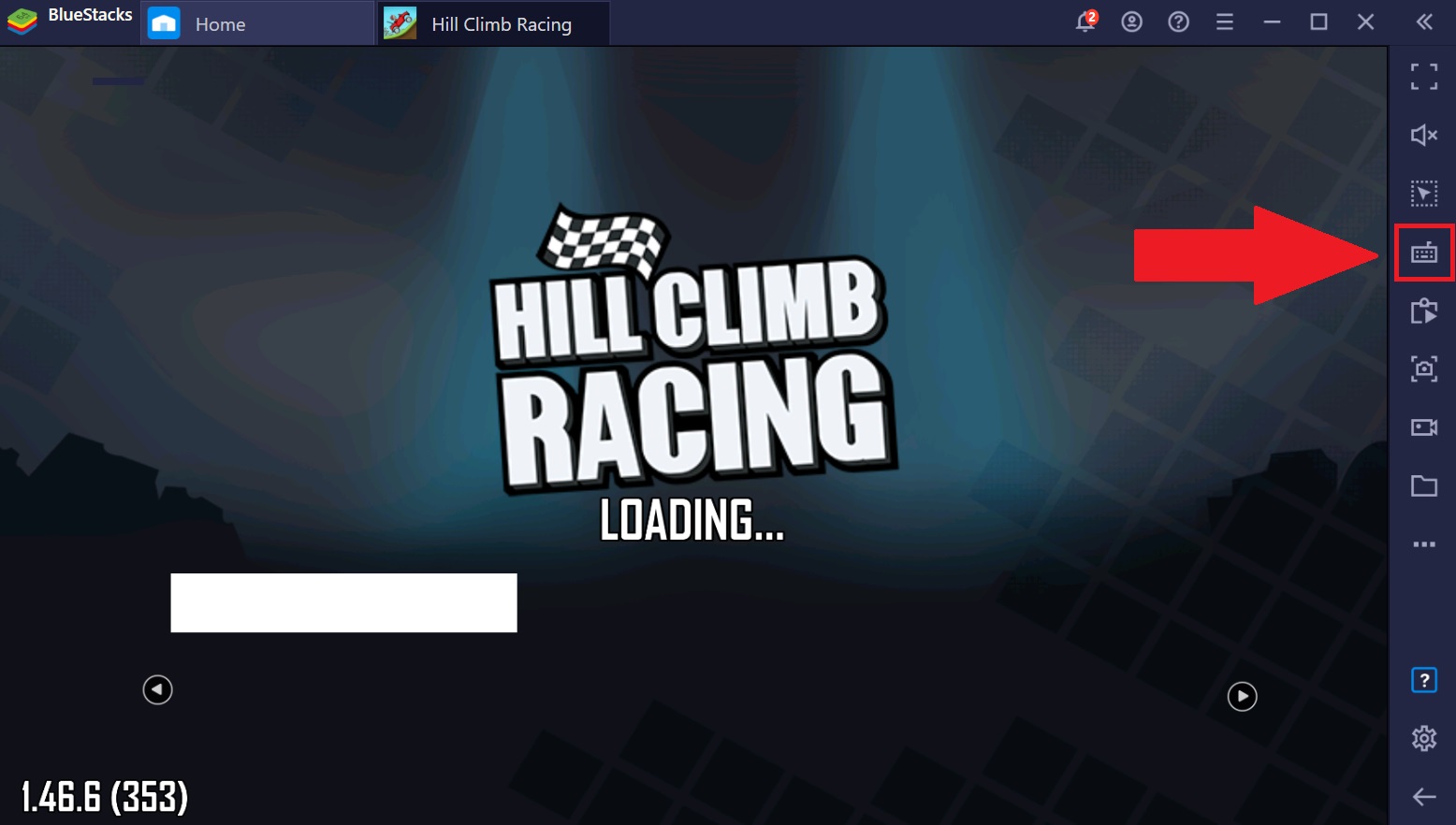
- من خلال النقر بزر الماوس الأيمن على أيقونة عناصر التحكم في اللعبة على شريط الأدوات الجانبي أثناء اللعب ، كما هو موضح أدناه.
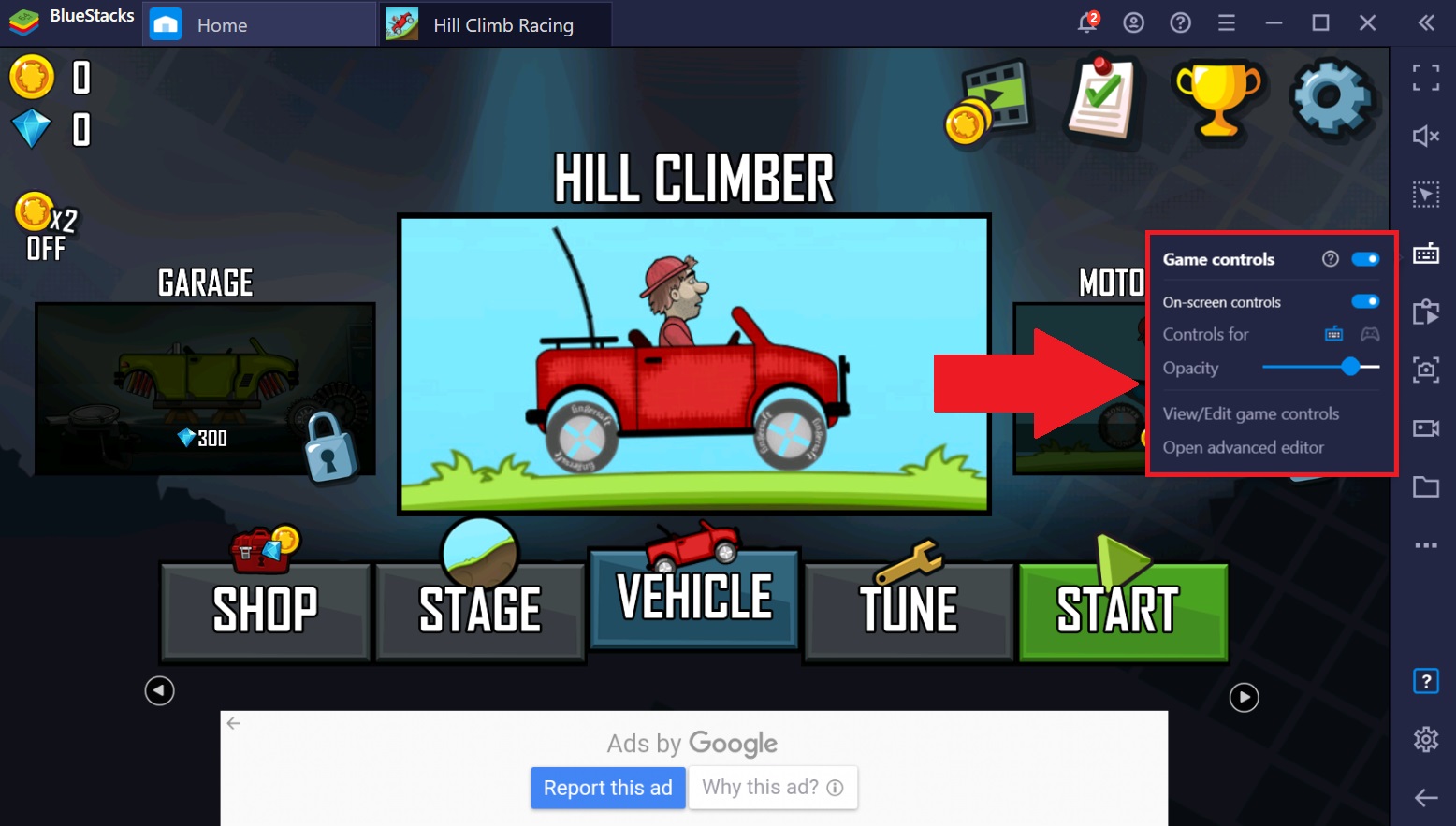
- عن طريق النقر بزر الماوس الأيسر على أيقونة عناصر التحكم في اللعبة واختيار فتح محرر متقدم من القائمة.
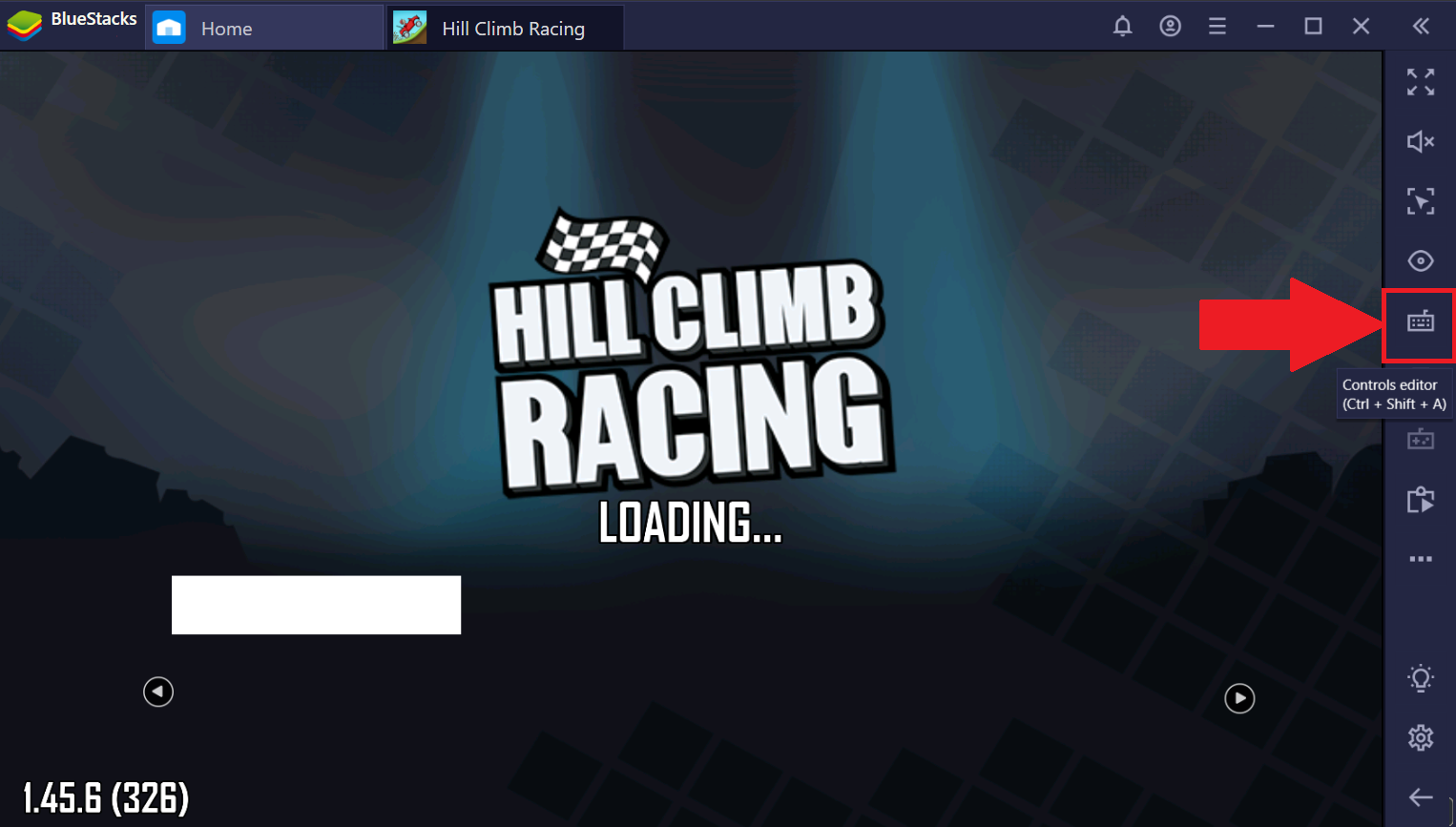
بالنسبة إلى BlueStacks 4.220 وما دون
انقر فوق رمز التحكم بلوحة المفاتيح في شريط الأدوات الجانبي ، كما هو موضح أدناه.
استخدام محرر عناصر التحكم لإنشاء برنامج نصي
عند فتح محرر عناصر التحكم ، ستظهر نافذة جديدة بجانبه ، كما هو موضح أدناه. سيتم تقديمك مع خيارات مختلفة لأنواع عناصر التحكم الرئيسية التي ترغب في إنشائها.
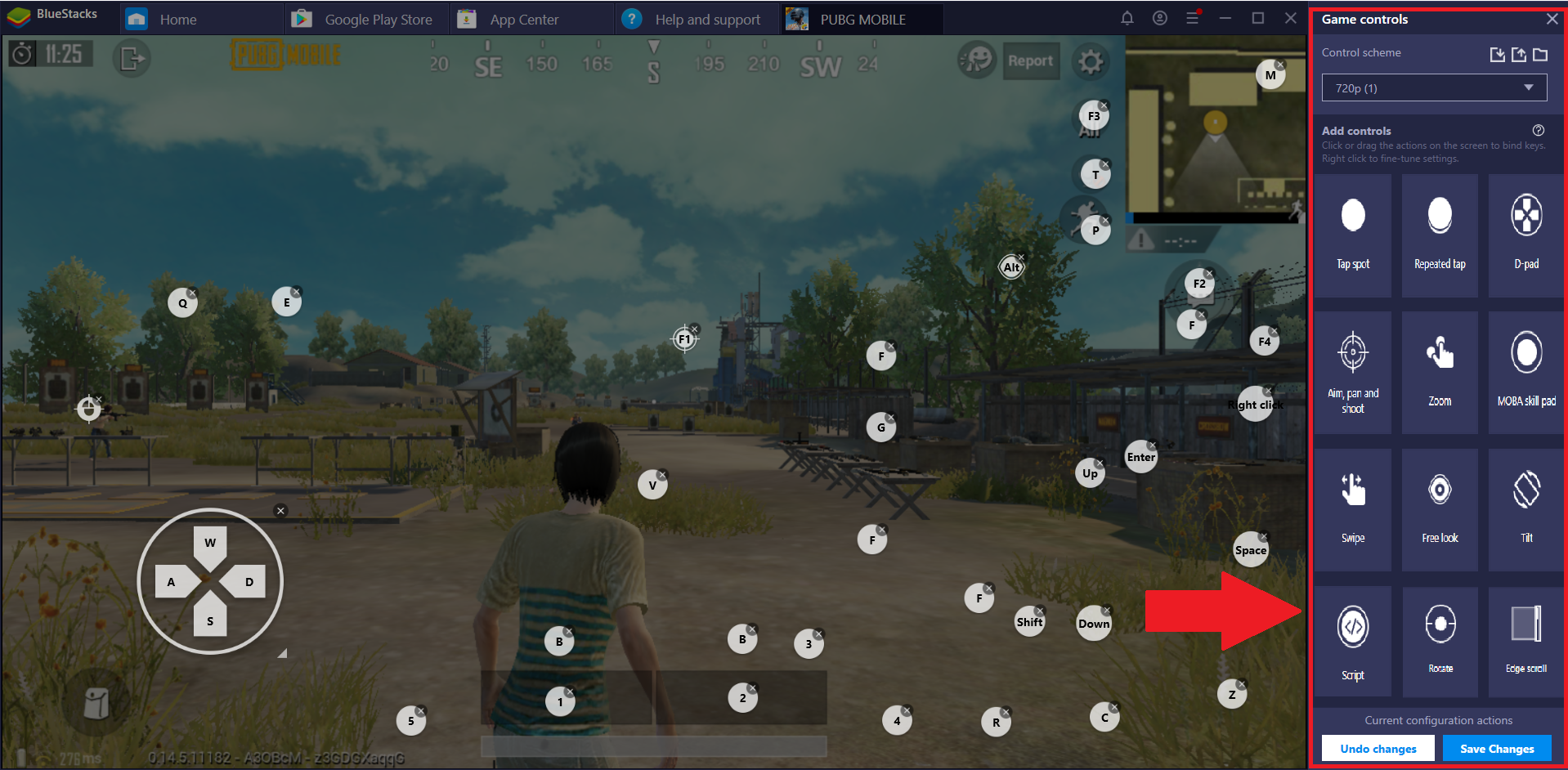
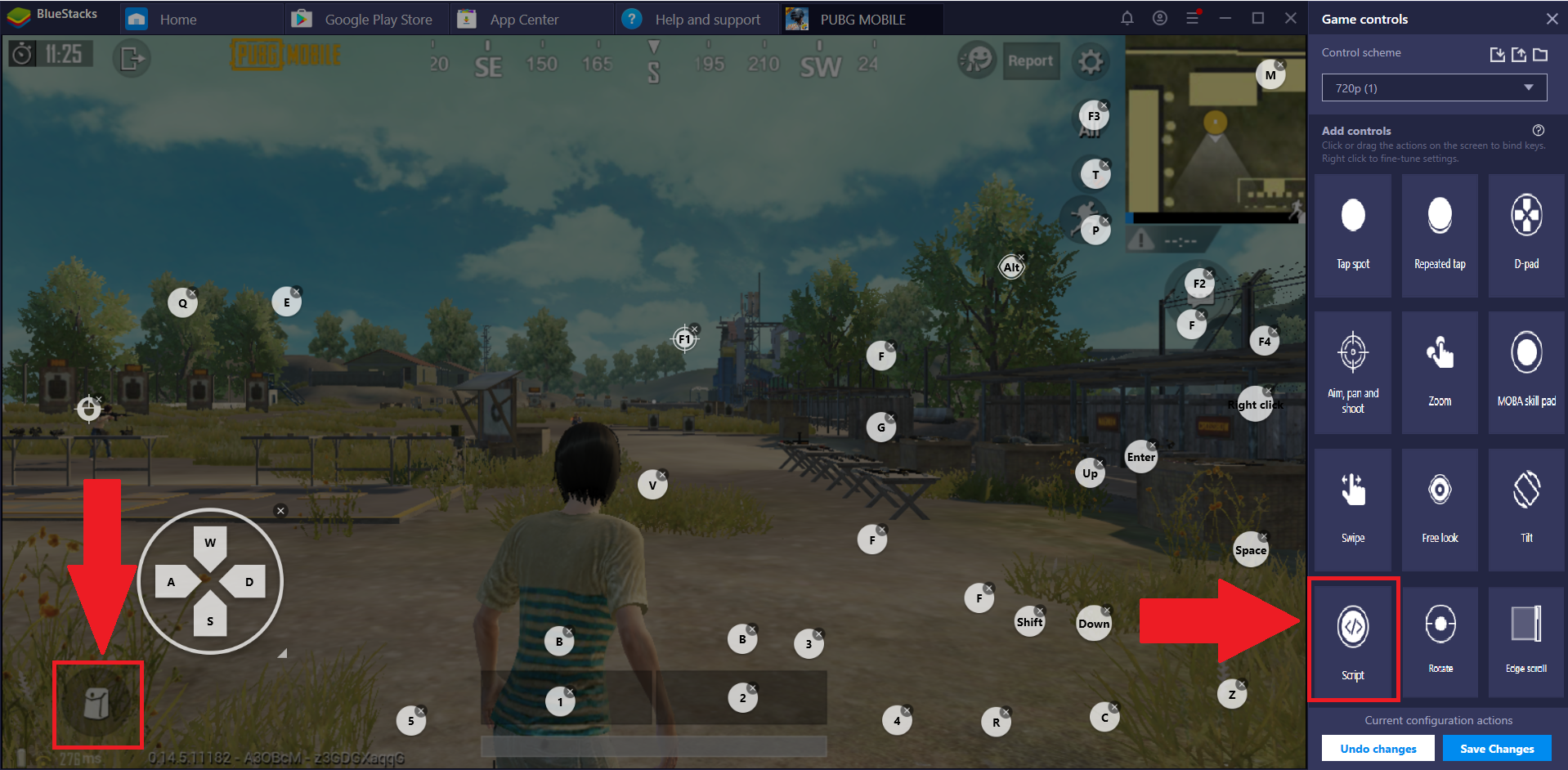
1. لإنشاء برنامج نصي ، اسحب زر البرنامج النصي من قائمة "إضافة عناصر تحكم" وقم بإفلاته في منطقة وظيفية. لأغراض التوضيح ، دعنا نسقطها على أيقونة الحقيبة في الزاوية اليسرى السفلية ، كما هو موضح في الصورة أدناه.
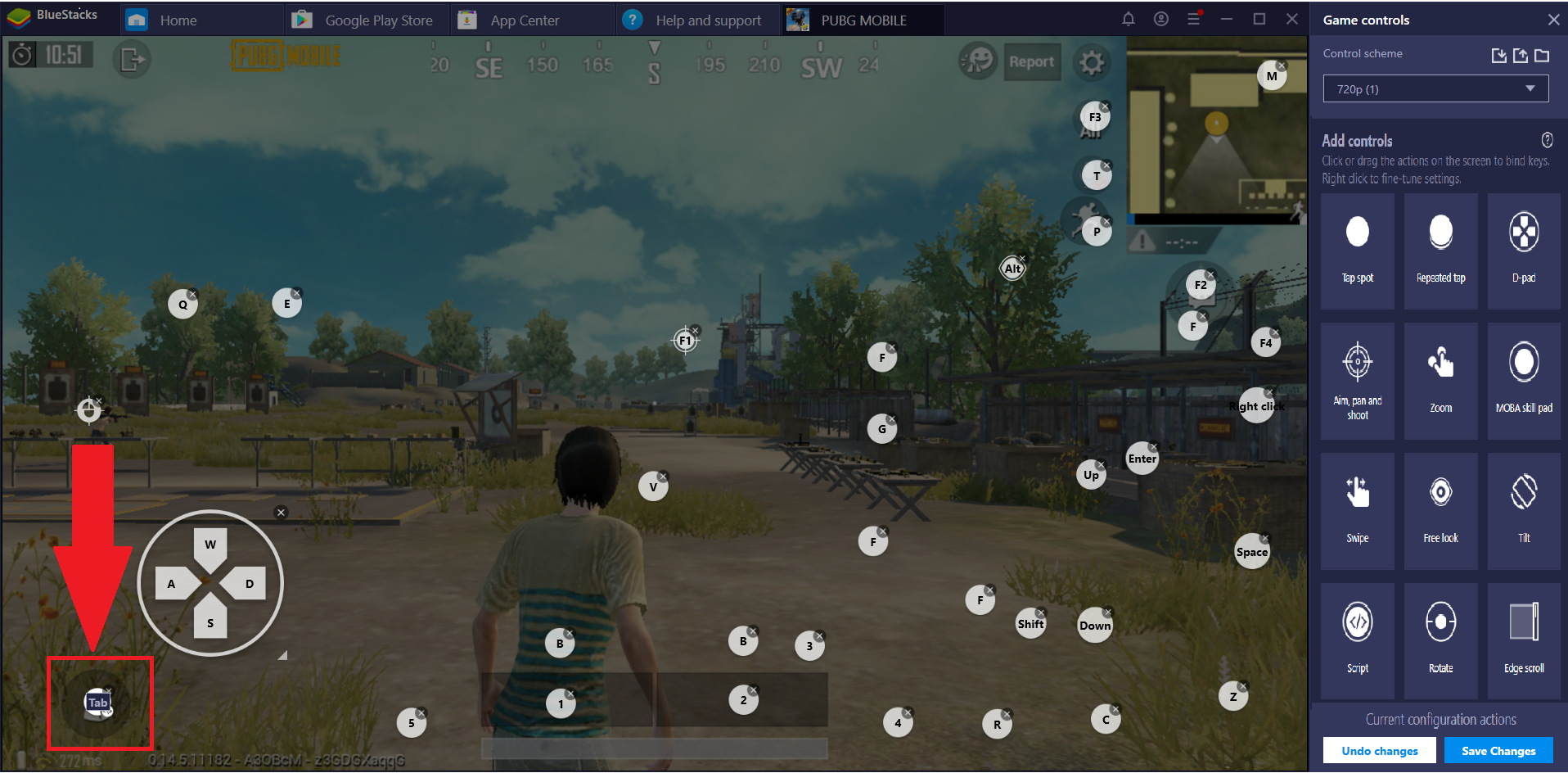
2. الآن ، قم بتعيين مفتاح لهذه الوظيفة. هنا ، يتم تعيين الزر TAB لبدء الأمر المضاف كبرنامج نصي.
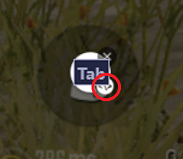
3. انقر على أيقونة "<\>" أسفل زر البرنامج النصي لبدء إضافة أوامر هذا البرنامج النصي.
4. بمجرد النقر على أيقونة "<\>" ، تبدأ إحداثيات المؤشر في الظهور على الشاشة. عندما تنقر بزر الماوس الأيمن فوق نقطة على الشاشة ، سيتم عرض إحداثيات هذه النقطة في محرر البرنامج النصي ، كما هو معروض أدناه.
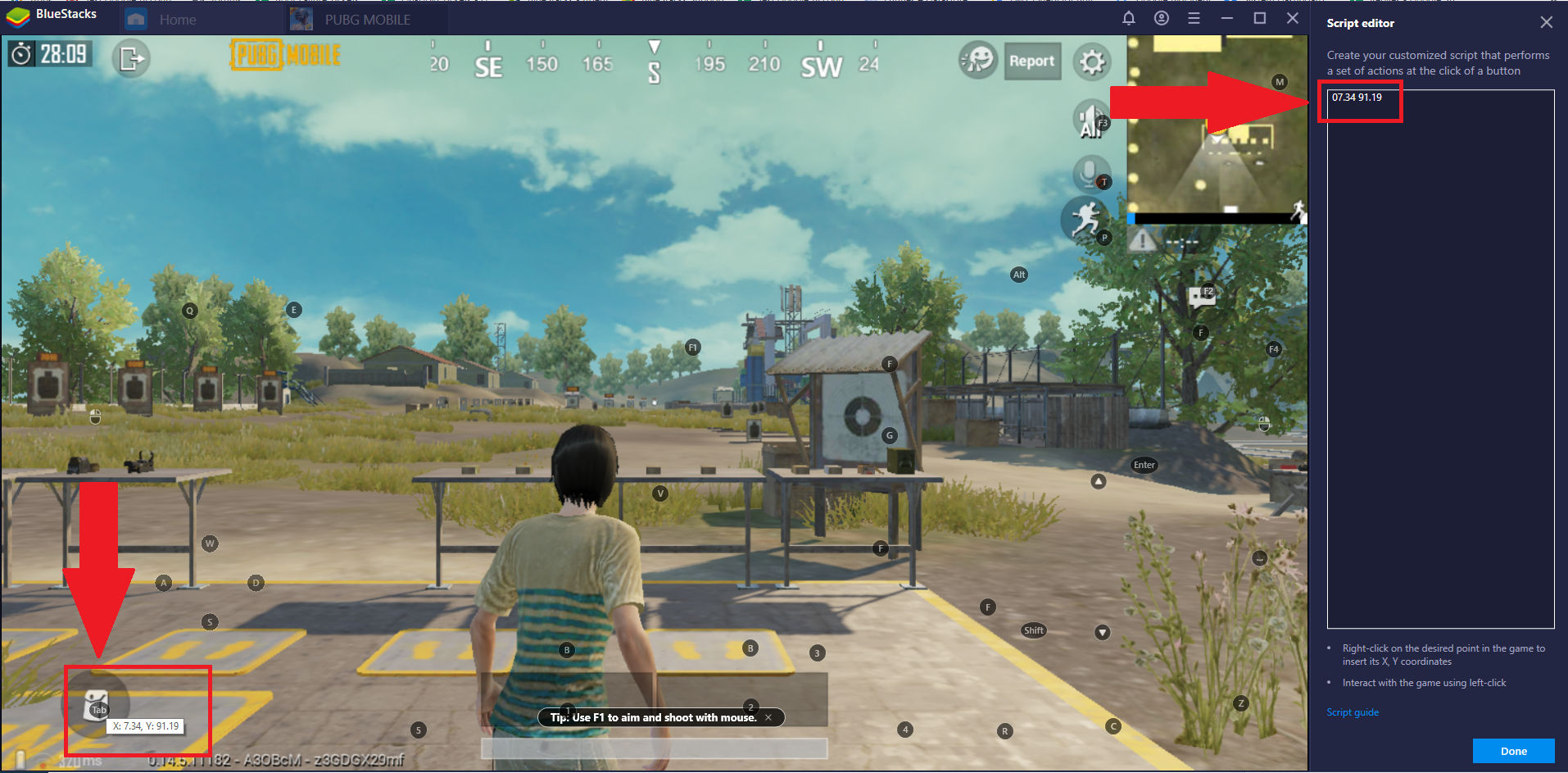
هنا ، تم النقر بزر الماوس الأيمن على أيقونة الحقيبة.
5. يمكنك البدء في إضافة أوامر البرمجة النصية مقابل الإحداثيات المعروضة.
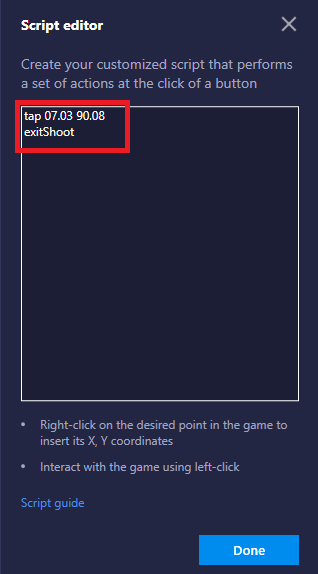
هنا الأمر:
النقر على الإحداثيات يعني أنه عندما نضغط على TAB ، فإنه سينقر مرة واحدة على أيقونة الحقيبة.
exitShoot مقابل الإحداثيات يعني أنه عندما نضغط على TAB ، فإنه سيخرج من وضع Shooting في اللعبة.
بعد إضافة الأوامر ، انقر فوق الزر تم.
6. انقر فوق حفظ التغييرات.
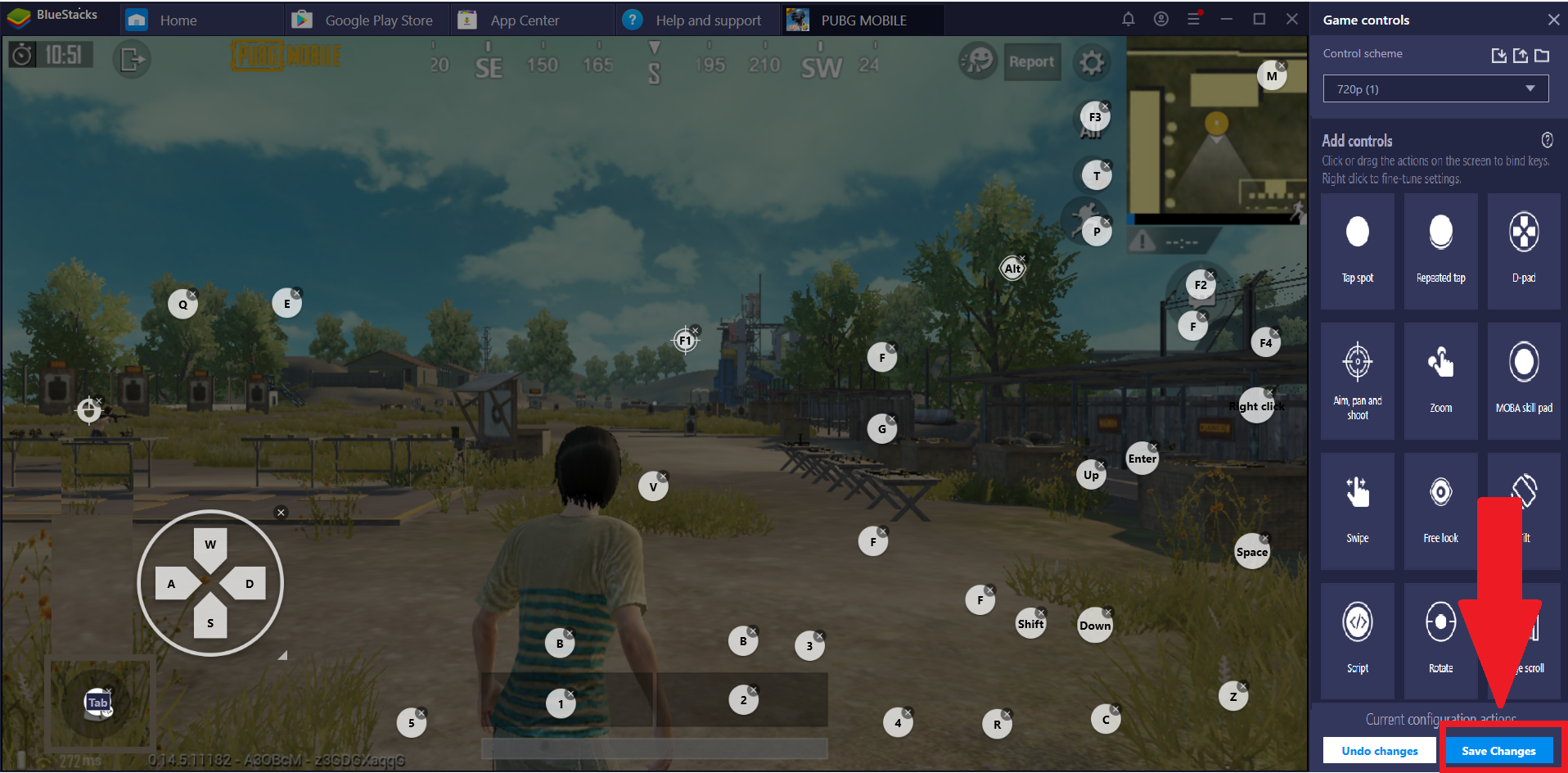
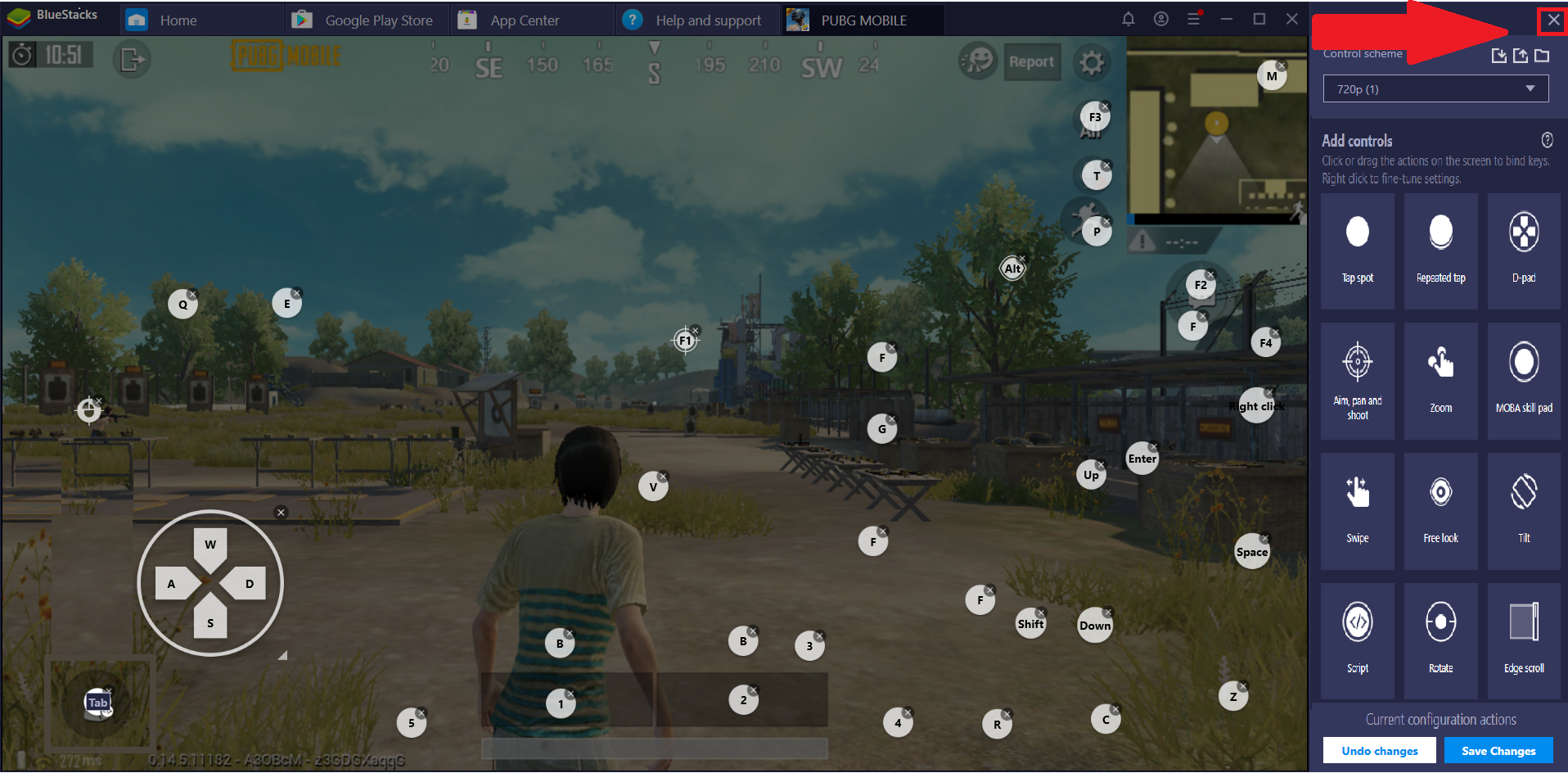
7. بمجرد حفظ التغييرات ، يمكنك إغلاق محرر عناصر التحكم بالنقر فوق X ، كما هو موضح أدناه.
8. بمجرد اكتمال الخطوات المذكورة أعلاه ، يمكنك رؤية التغييرات تنعكس في اللعبة.
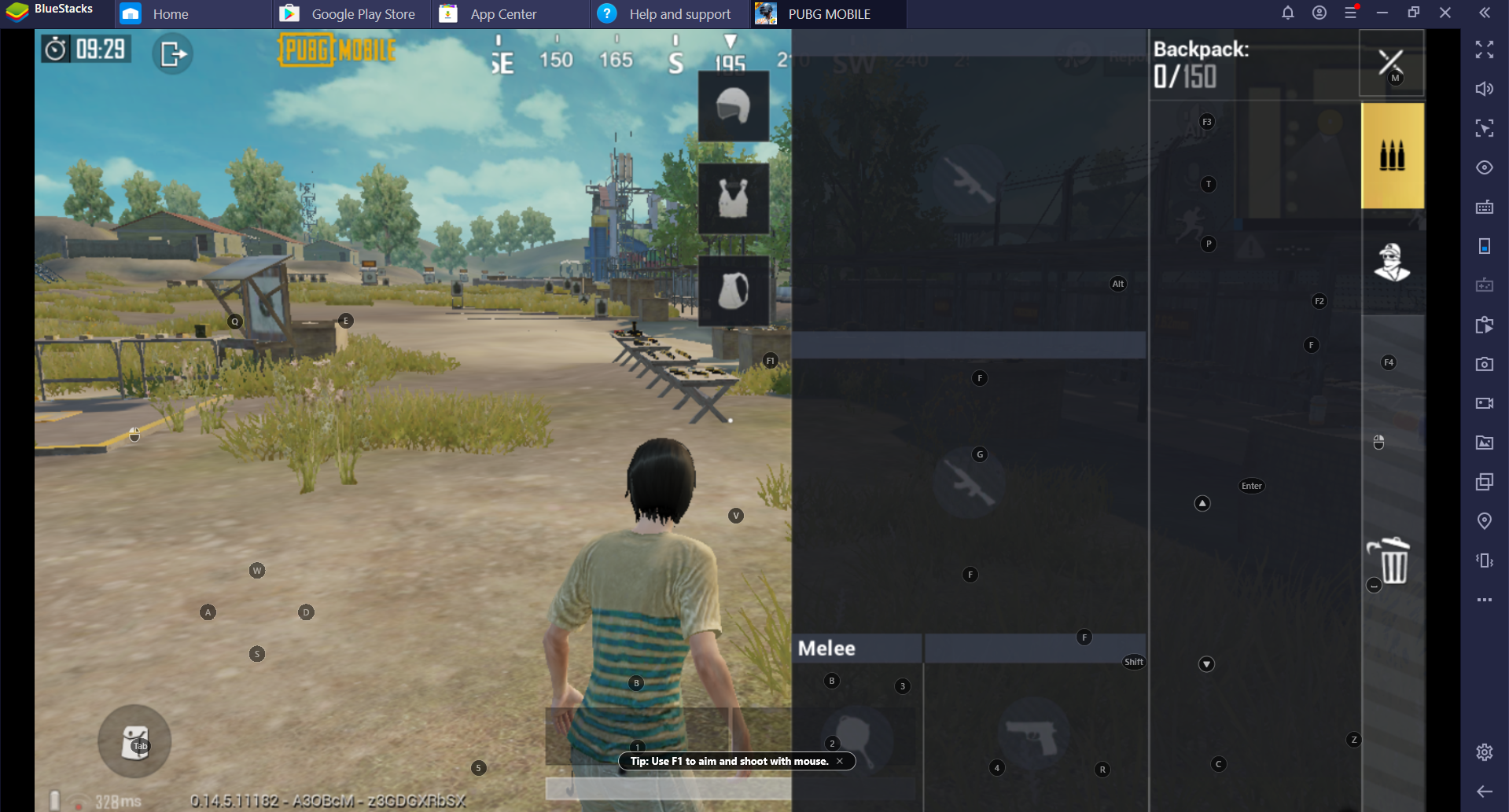
في لقطة الشاشة أدناه ، يكون المشغل في وضع التصوير.
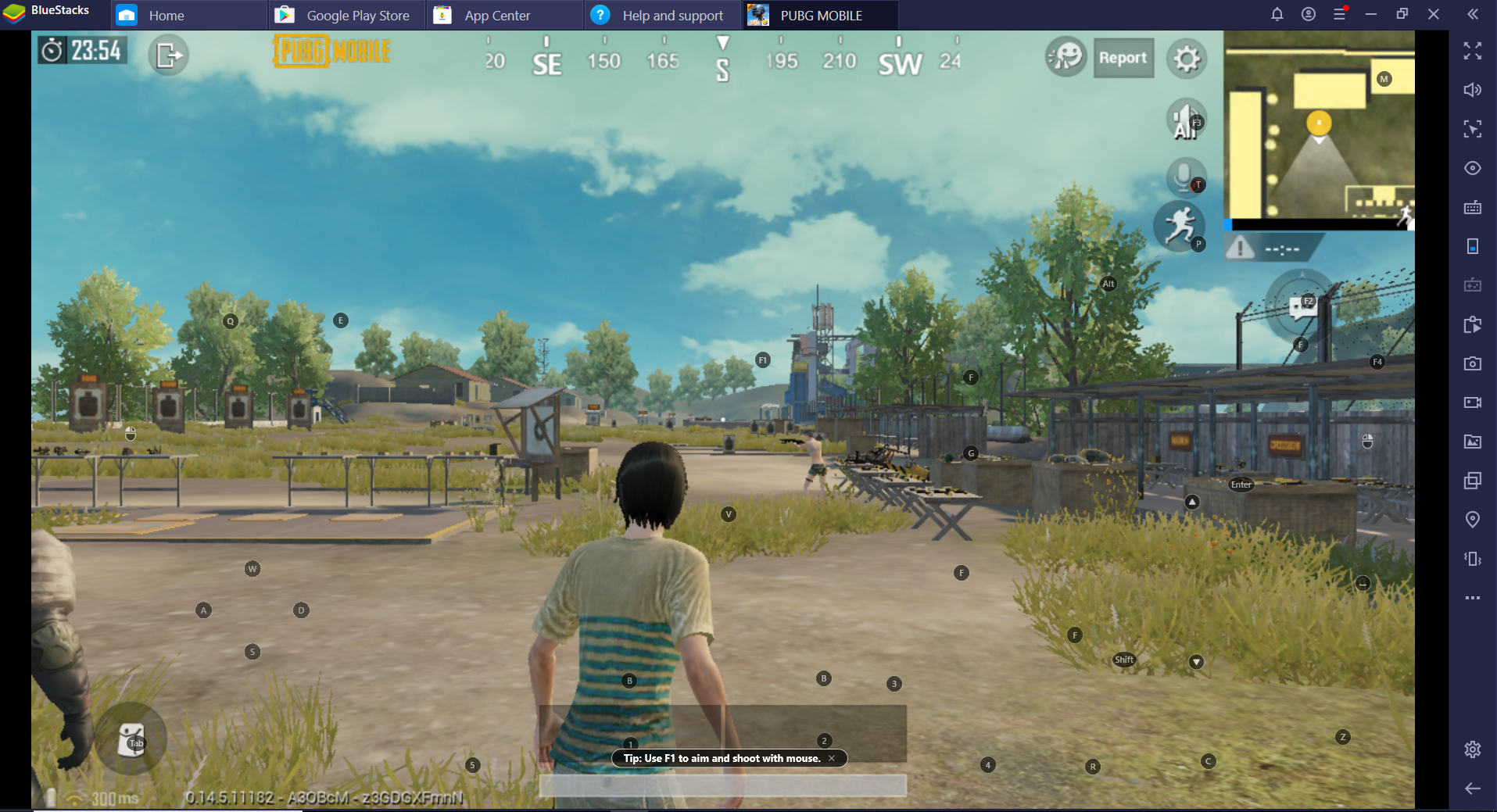
بمجرد الضغط على TAB ، ستفتح الحقيبة وسيخرج اللاعب من وضع التصوير.
نحن نقدر حقا اختيارك بلو ستاكس. نأمل أن تستمتع باستخدامه. إذا كان لديك أي أسئلة أخرى ، يرجى الاتصال بنا على .support.bluestacks.com شكرا جزيلا.