What is BlueStacks Desktop?
BlueStacks Desktop brings a full Android desktop environment to your Windows PC, letting you run Android 16 and open, resize, and use multiple apps side by side in separate windows.
It also supports AI agent workflows with tools like Claude and Codex, allowing them to interact with Android apps, switch between applications, and complete tasks.
Explore the links below to learn more.
Note: BlueStacks Desktop is currently available on Windows, with Mac support planned for the future.
At a Glance
All the important details, summarized in one place.
| Operating system | Windows |
| Android version | Android 16 |
| Minimum RAM | 12 GB |
| Use case | Run Android apps and work with AI agents such as Codex and Claude |
Getting started
System requirements
Discover the features
Home screen
The home screen provides shortcuts to your apps. Select an app icon to open it. When the home screen is full, adding new apps may replace existing icons. You can still find all your installed apps in the app drawer.
Recent Apps
Use Recent Apps to view and switch between recently opened apps without returning to the home screen.
App drawer
The app drawer displays your installed apps. Use it to find and open apps that are not visible on the home screen.
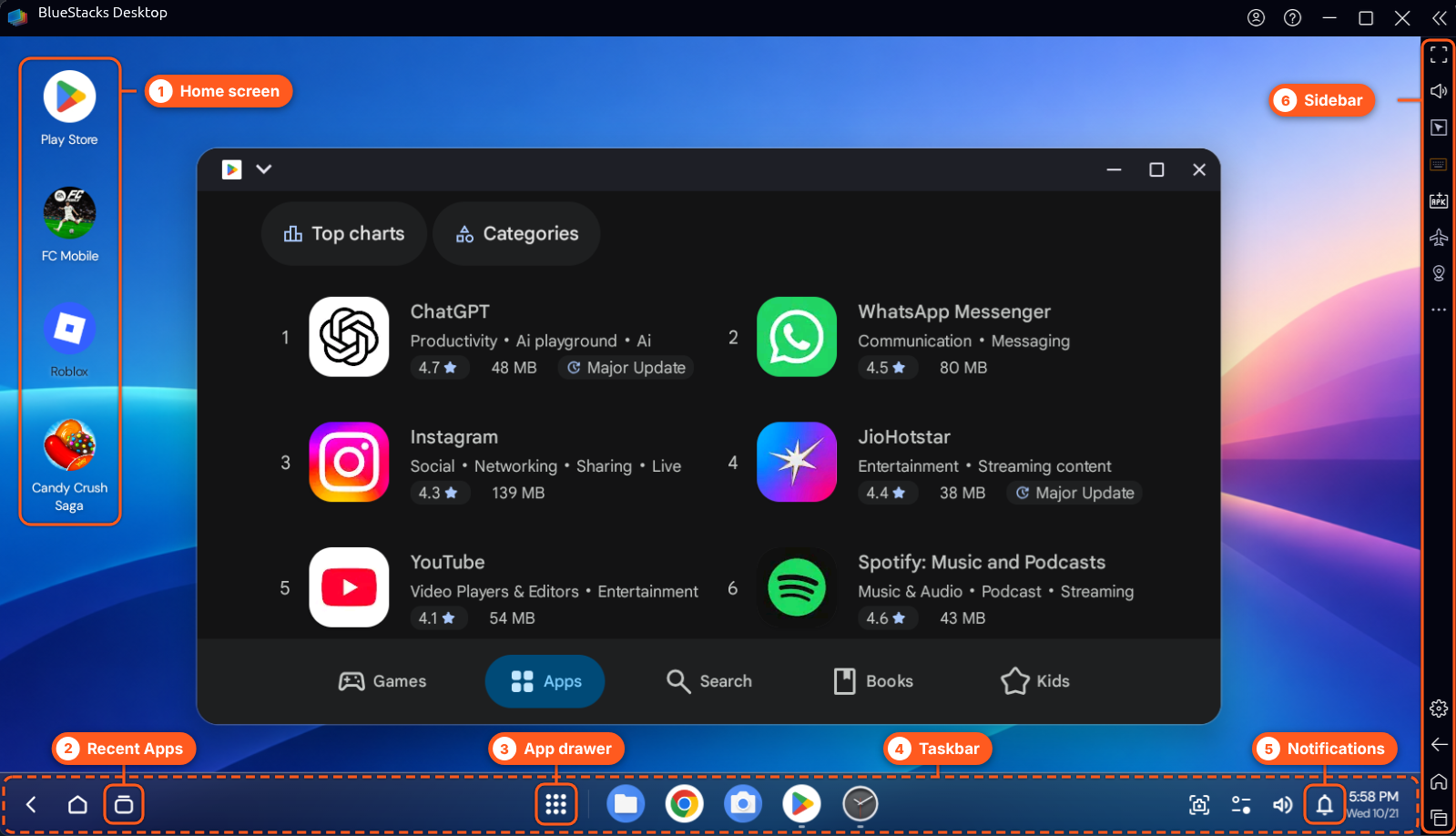
Taskbar
Use the taskbar to access apps and switch between them. It provides a central place to navigate your open apps.
Notifications
Select the bell icon on the taskbar to view notifications from your apps.
Sidebar
The sidebar provides access to additional tools, including Set location. Open it when you need to change your location or access other available tools.
How is BlueStacks Desktop different from BlueStacks 5?
BlueStacks Desktop and BlueStacks 5 provide different ways to use Android apps on your PC.
| Feature | BlueStacks Desktop | BlueStacks 5 |
|---|---|---|
| Interface | Android desktop with a launcher, taskbar, and app drawer | Android App Player |
| App windows | Run multiple apps simultaneously in separate windows | Run one app at a time within the App Player |
| Primary use | Built for AI agent workflows and multitasking | Primarily designed for gaming |
Note: You can use BlueStacks Desktop and BlueStacks 5 on the same PC. Installing BlueStacks Desktop does not require you to uninstall BlueStacks 5.
FAQs
How do I set my location?
Apps may detect your location as Mountain View, US by default. To change it, open the sidebar, select Set location, and enter your preferred location using the tool.
How do I switch an app to full screen?
Apps open in a window by default. To switch to full screen:
- Open the app.
- Select the dropdown next to the app icon in the title bar.
- Choose your preferred option from the three available display options.
To exit full screen, drag down from the top of the screen.
Note: BlueStacks Desktop does not remember the full-screen setting for each app. You can enable the setting that keeps apps in full screen permanently.
Why are my game controls not working?
Game controls currently work only in full-screen mode. Switch the app to full screen and try again. If the issue persists, submit a problem report.
Where can I find my notifications?
Select the bell icon on the taskbar to view notifications from your apps.
How do I find all my installed apps?
Open the app drawer to view all your installed apps. When the home screen is full, adding new apps may replace existing icons.
How do I install an APK?
Select the APK installation option in BlueStacks Desktop, choose the APK file from your PC, and follow the on-screen instructions.
Note: Only install APK files from trusted sources.
How do I use BlueStacks Desktop with an AI agent?
You can use computer-use AI agents such as Claude and Codex to interact with Android apps and automate tasks in BlueStacks Desktop. Refer to the Claude or Codex documentation for setup instructions and guidance on using computer-use AI agents.
Note: ADB (Android Debug Bridge) is disabled by default. If your workflow requires ADB, you can enable it in the available settings.
How do I import files from Windows?
Use Media Manager to import supported files from your Windows PC:
- Open Media Manager.
- Select the import option.
- Choose the files you want to import.
- Follow the on-screen instructions.
Why can't I reinstall BlueStacks Desktop after uninstalling it?
If you cannot reinstall BlueStacks Desktop, submit a problem report so the support team can investigate.
How do I report a problem?
Click the ? icon in the top bar to Report a problem. Describe the issue and fill out the requested details, including the steps to reproduce it, the affected app, your PC configuration, and any error messages. Once you've provided all the necessary information, click Submit report.
What should I do if I encounter issues while playing games?
Some games may crash, show a black screen, open in the wrong window position, or have unresponsive controls.
- Crashes or black screens: These are more common on PCs with AMD hardware.
- Window issues: Maximize the window or switch to full screen.
- Control issues: Game controls work only in full-screen mode.
If the issue persists, submit a problem report.
Need help?
If you encounter an issue that is not covered in this article, submit a problem report with the relevant details so the support team can investigate.