BlueStacksでアプリアイコンのサイズを変更する方法

アイコンのサイズを小、中、大のいずれかに変更して、ホーム画面の外観をカスタマイズできるようになりました。こちらの記事では、BlueStacksで使用するアプリのサイズを変更する方法をご紹介します。


アプリアイコンの変更方法

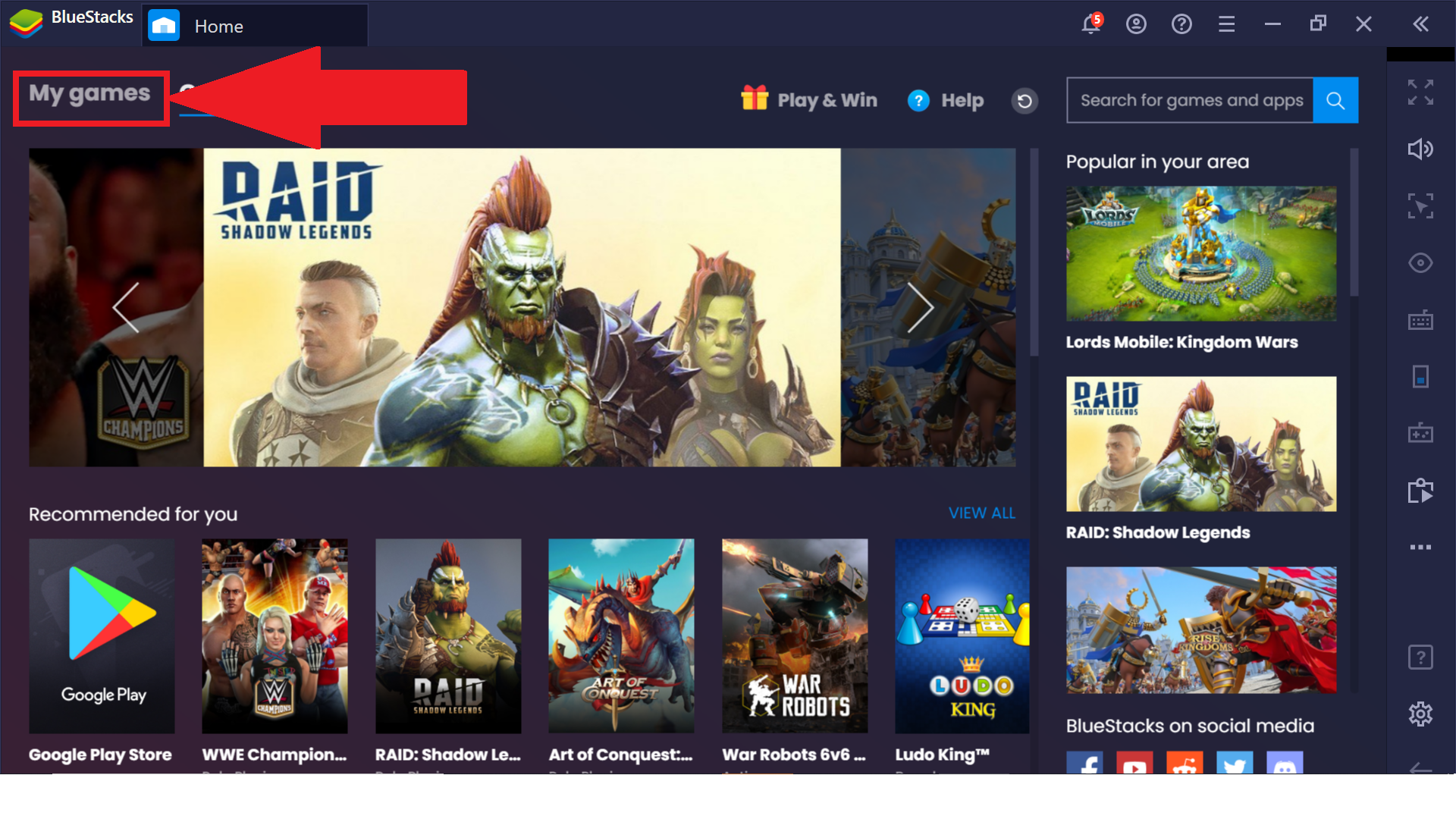
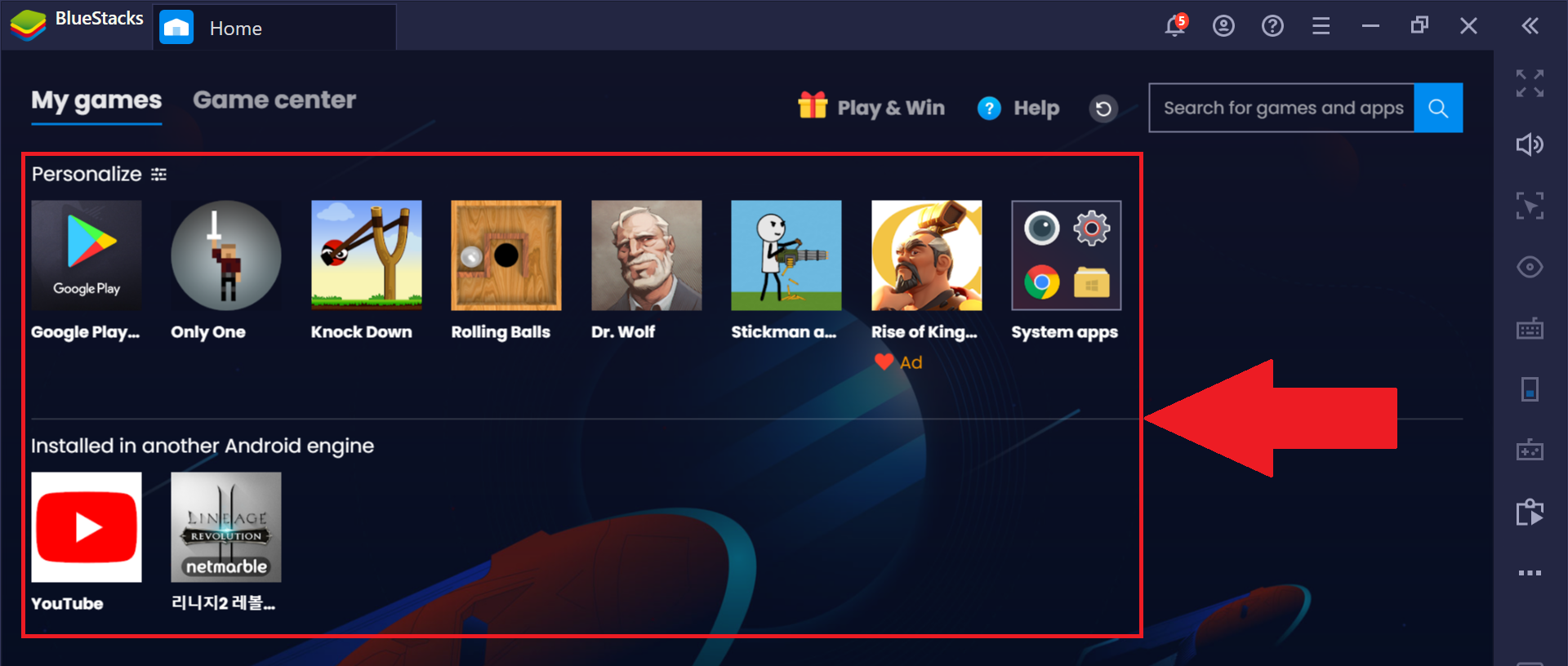
  1. BlueStacksを起動して、「マイゲーム」に移動します。

1.png2. 「マイゲーム」に移動したら、「カスタマイズ」の横にあるアイコンをクリックします。
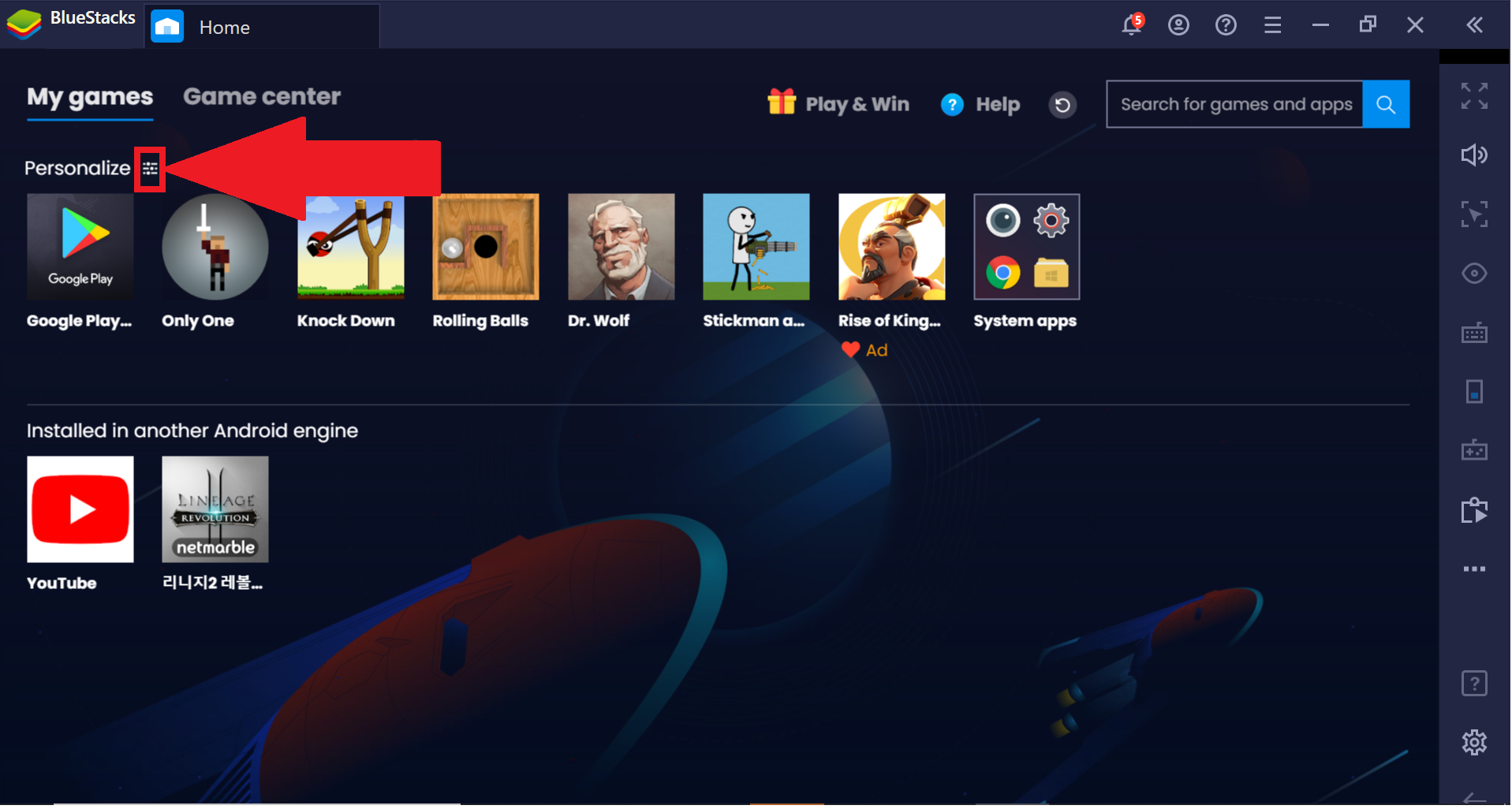
1.png

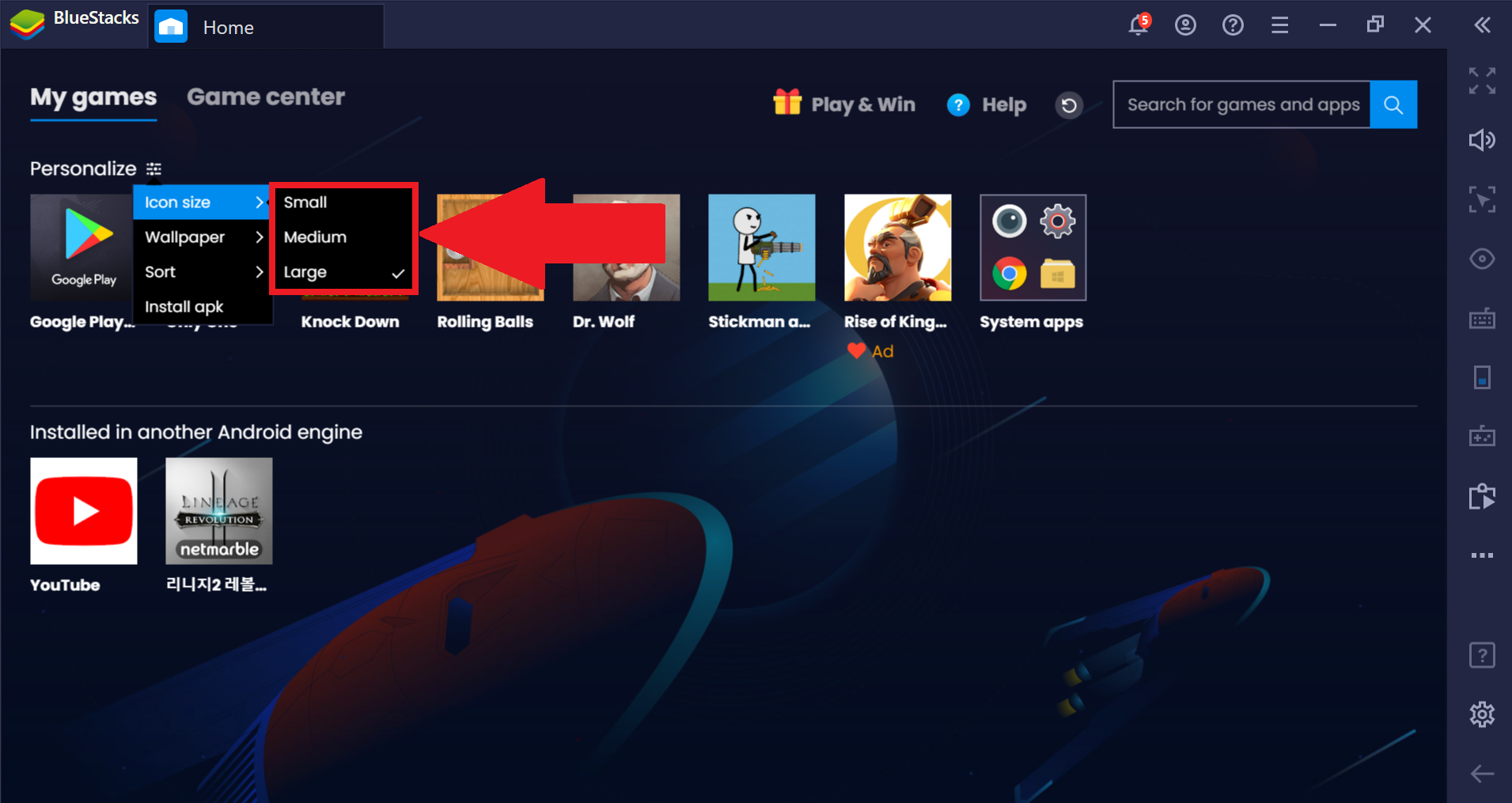
3.  ドロップダウンウィンドウが表示されます。ここで、アイコンサイズをクリックします。
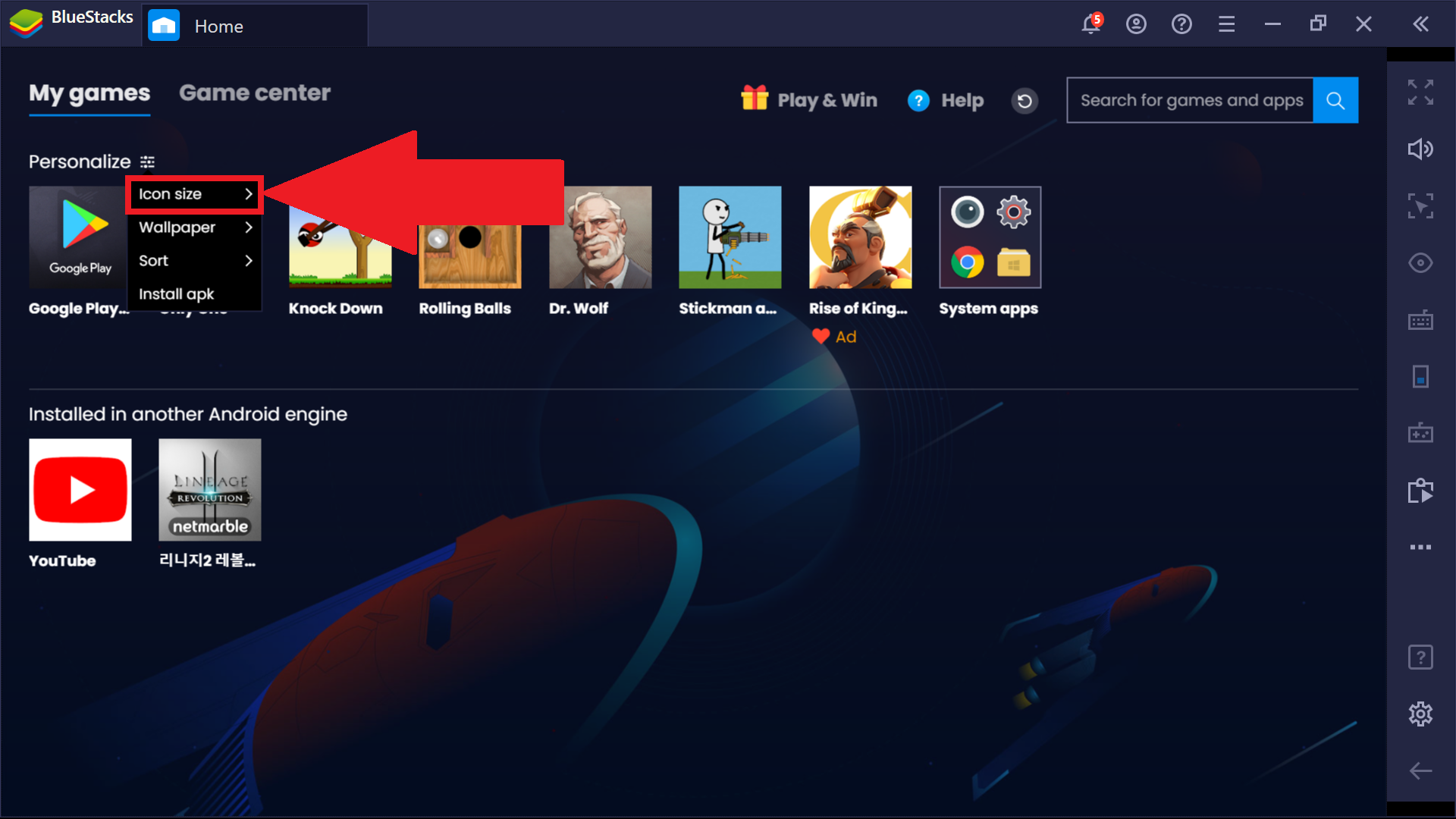
2.png

4. 次に、アプリのアイコンに適用するサイズを選択します。

3.png

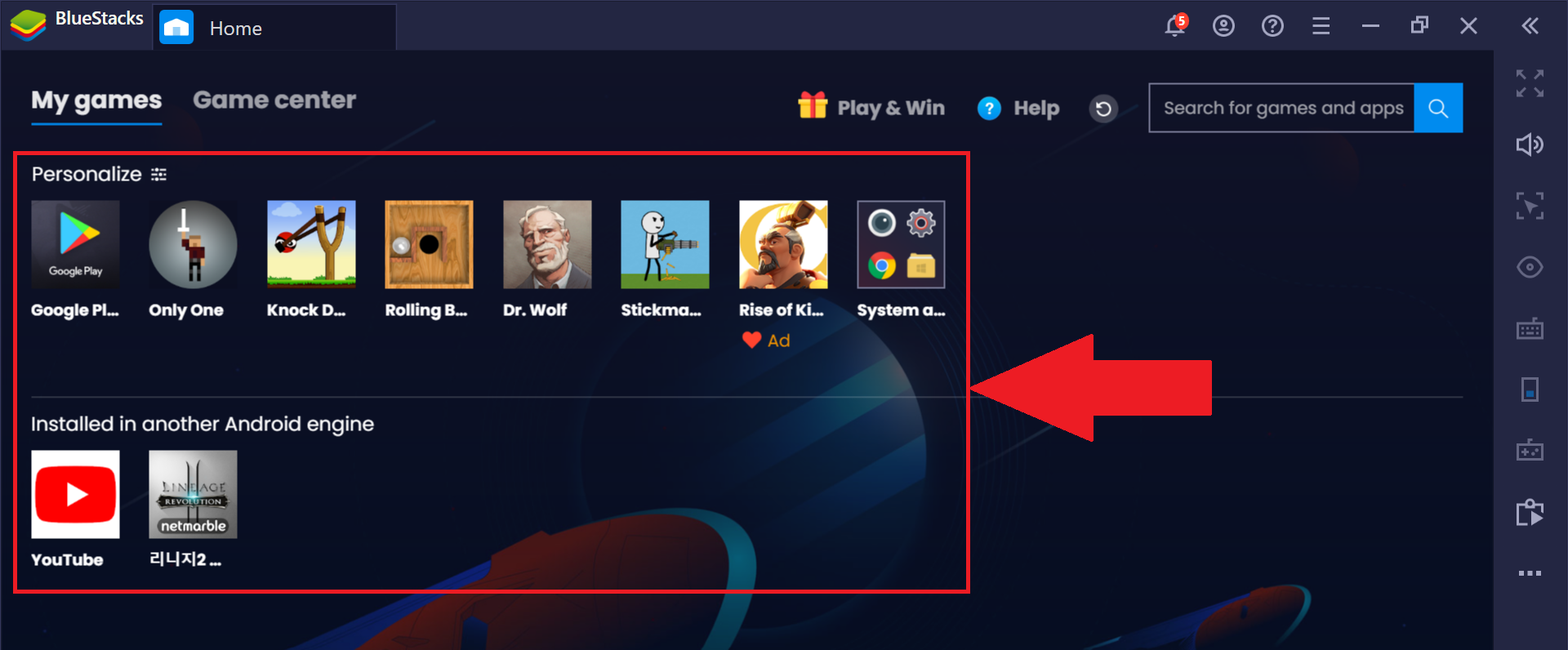
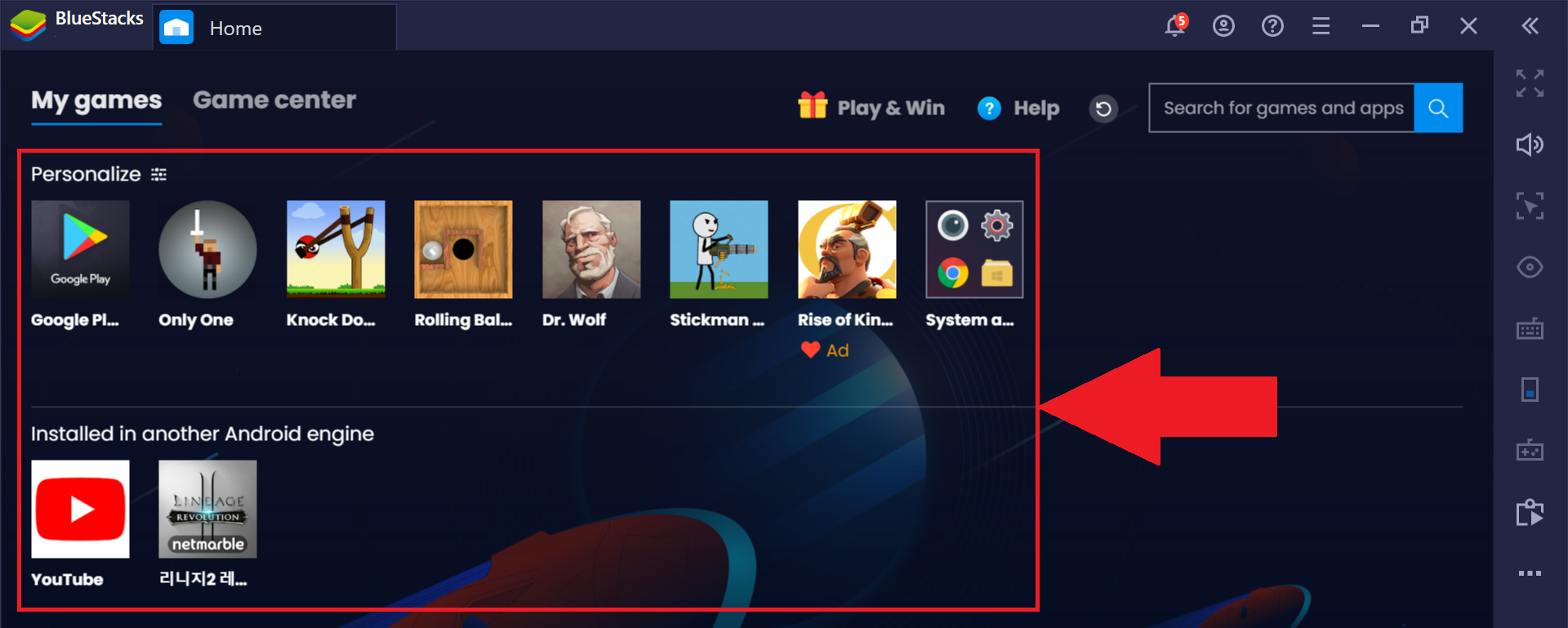
サイズは以下から選択可能です。

4.png

5.png

6.png

これら3つのオプションのいずれかを選択すると、アプリのアイコンが適切なサイズに変わります。


いつもBlueStacksをご利用いただき、誠にありがとうございます。ご不明な点がございましたら、support@bluestacks.comまでお知らせください。どうぞ宜しくお願いいたします。


最終更新日:2020年7月24日

この記事は役に立ちましたか?
68人中32人がこの記事が役に立ったと言っています
Reach out to us on Reddit (Join Reddit) or Discord (Join Discord) or at support@bluestacks.com with your questions.

We’d love to hear from you! Please take a moment to share your thoughts on the BlueStacks Help Center via this survey.
Subscribe to BlueStacks Weekly!
Get updates on new releases, features, and fixes. Discover trending games & enjoy exclusive gift codes!
By subscribing, I agree to receive weekly updates from the BlueStacks Help Center.
Thank you for subscribing to BlueStacks Weekly
Keep an eye on your inbox for updates on the latest features, gaming trends, bug fixes, gift codes, and much more!