How will this help?
This article will teach you the steps for customizing the settings menu on BlueStacks 4.40.0.1109.
How can I customize the settings?
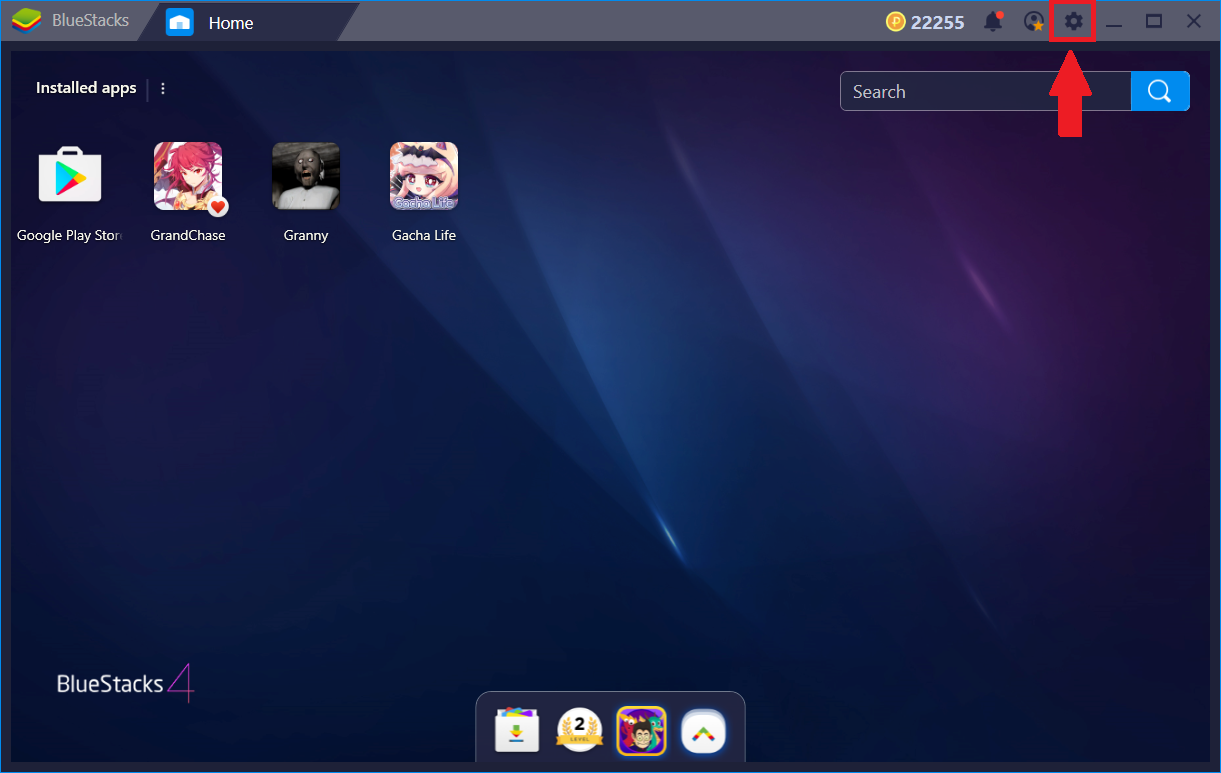
Click on the gear icon on the top bar as shown below.
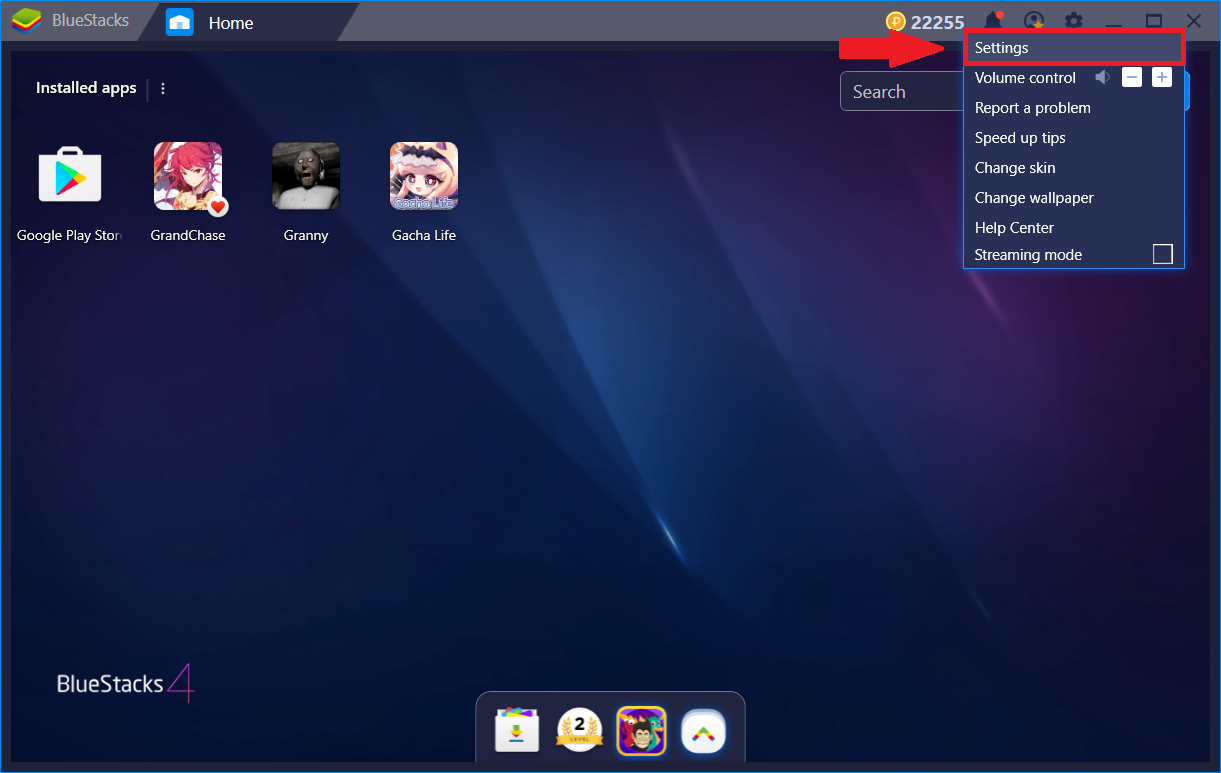
- Click on Settings.
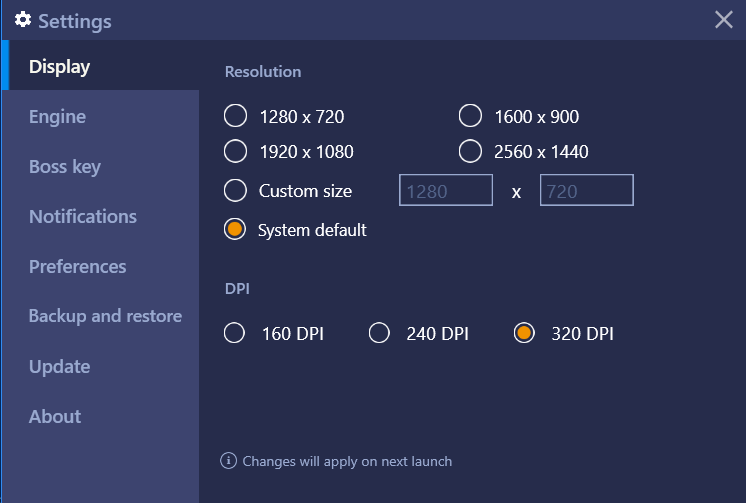
1. Display: You may customize the resolution and DPI through the 'Display' settings menu, to enhance your viewing and playing experiencing on BlueStacks. Please close and restart BlueStacks to make your resolution and DPI settings effective.
2. Engine (For advanced users): This will let you change the graphics mode in which BlueStacks runs. Here you may also allocate CPU cores and RAM as per your requirement. Please refer to the article How can I change the graphics mode on BlueStacks?
Upon scrolling down, you will see the slider to adjust FPS as shown in the screenshot below. For more information on FPS, you may refer to this article.
Note: Changes in Engine settings will be applied on restarting BlueStacks.
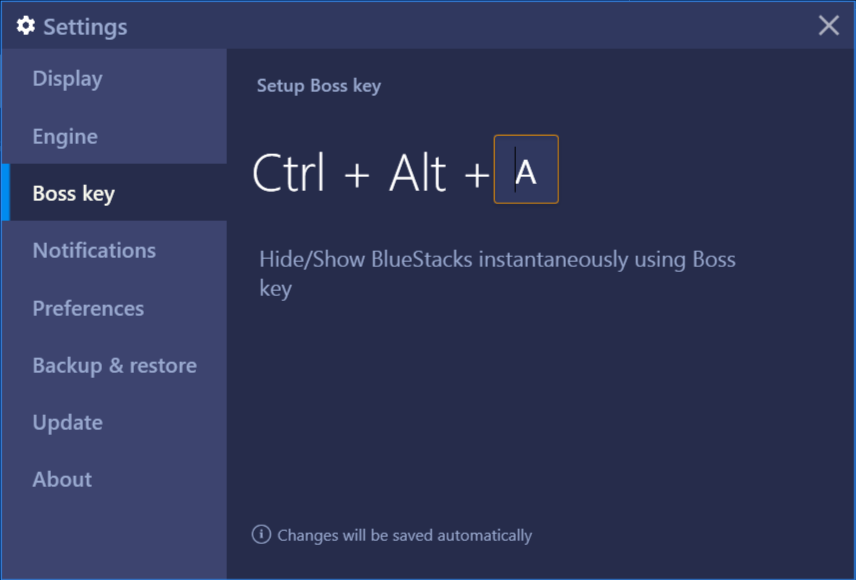
3. Boss Key: You can hide/show BlueStacks instantaneously using "Boss Key". You may use any alphabetic with ctrl and alt keys to enable this feature.
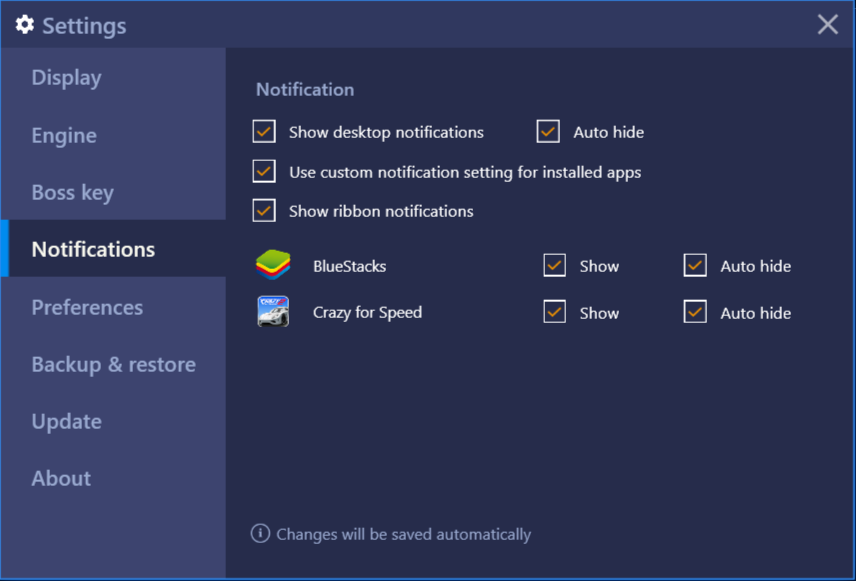
4. Notifications: This will let you manage notifications on BlueStacks 4. You can also refer to the article How to manage notifications on BlueStacks?
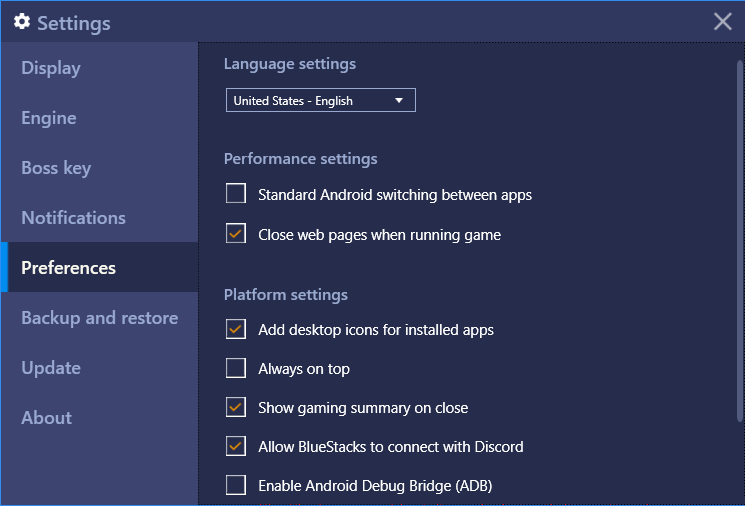
5. Preferences: This will let you add desktop icons for installed apps. Here you can also customize your performance and platform related settings.
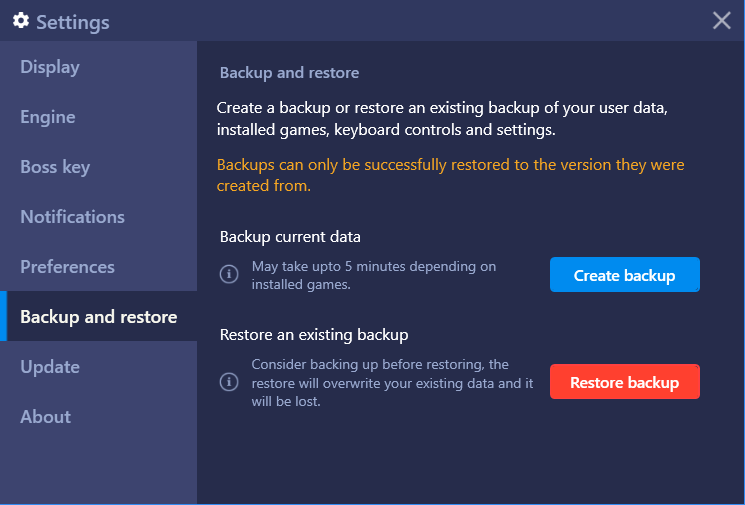
6. Backup & restore: This option will let you recover all your BlueStacks data by creating Backup and restoring it. For more information, please refer to this article How to use Backup and Restore on BlueStacks.
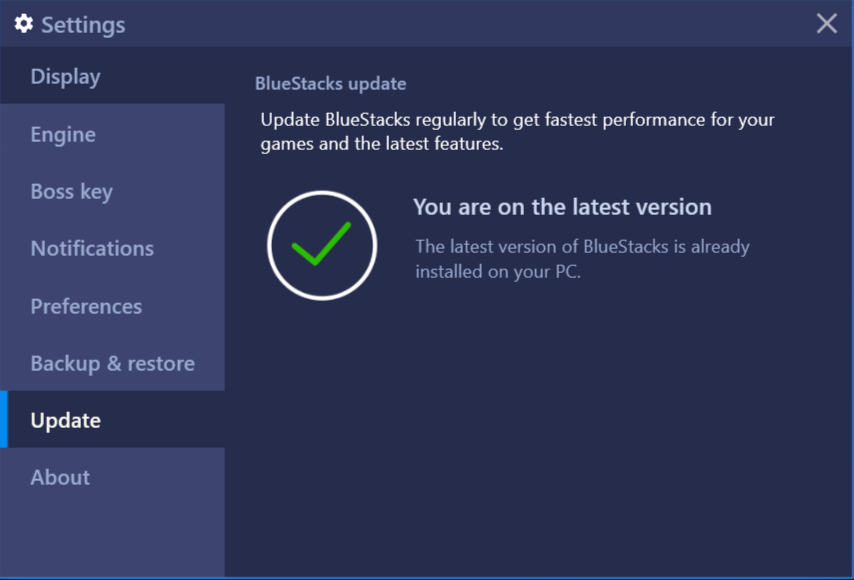
7. Update: You can check whether the latest BlueStacks version is available. This will keep you up to date with the latest releases. Click "Check for updates" to see if any update available.
8. About: It provides information about BlueStacks version installed on your PC.
Thank you for choosing BlueStacks. We hope you enjoy using it. If you have any further questions, please contact us at support@bluestacks.com. Happy Gaming!
Last updated on Sept 8, 2020.