How will this help?
This article will teach you the different ways of installing an application on BlueStacks using a '.xapk' file.
How can I install an app with '.xapk' file?
There are two methods of installing an app with it's '.xapk' file. They are:
Installation through the drag and drop method
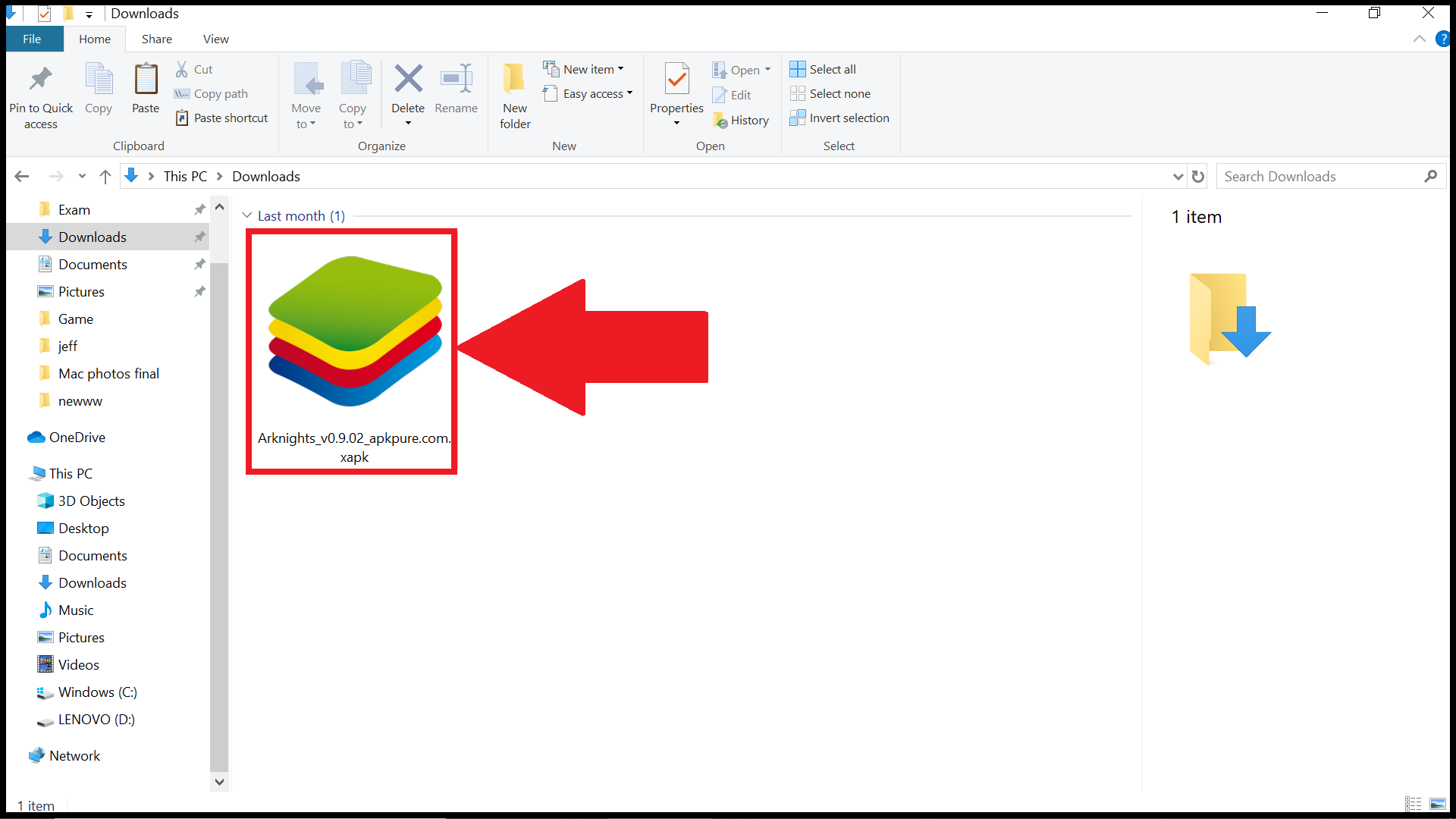
1. First, download the '.xapk' file for the Android app you wish to use from any third-party site.
2. Now, navigate to the Windows location where the '.xapk' file has been downloaded.
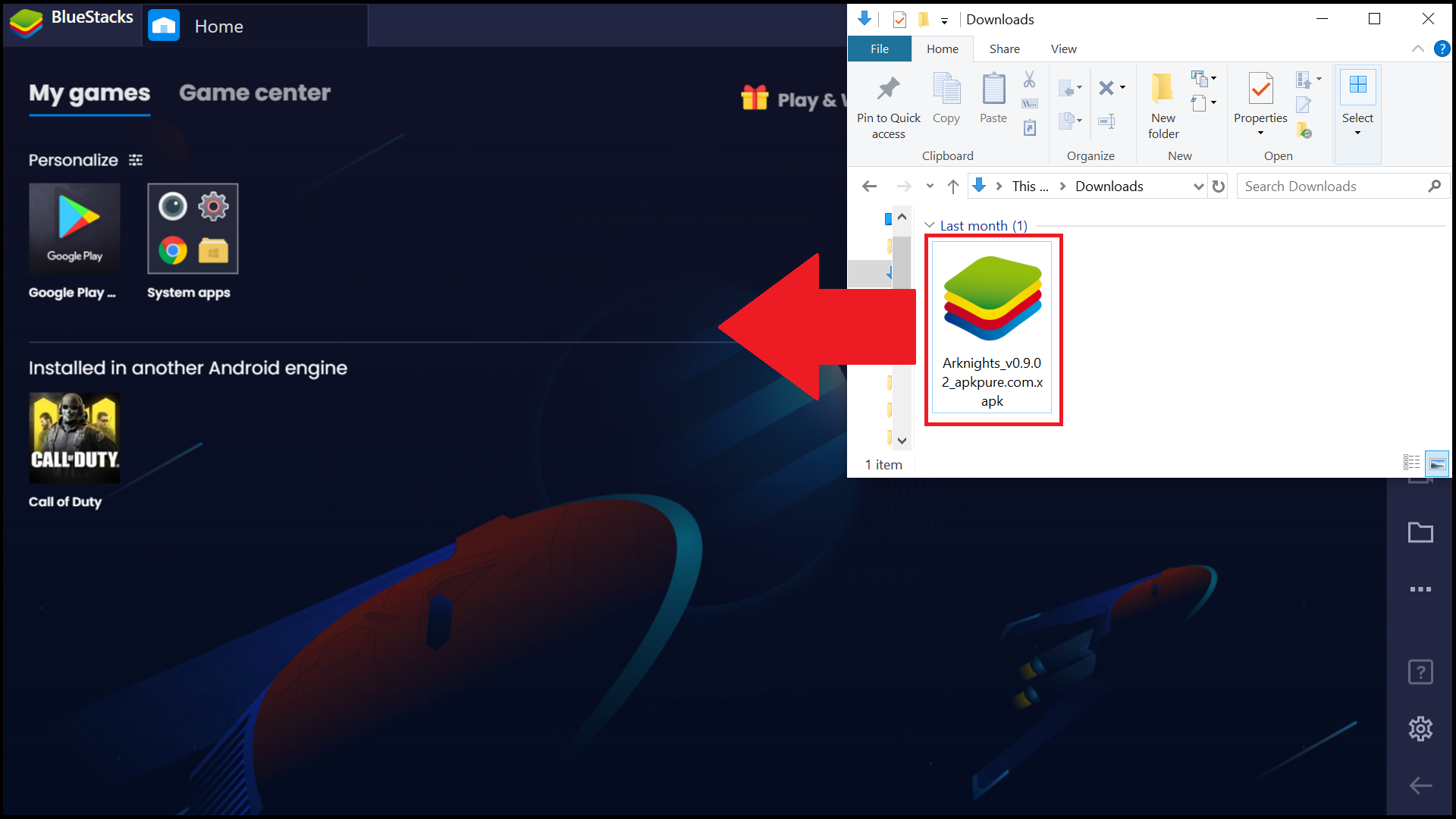
3. Launch BlueStacks and drag and drop the file on there from the Windows location.
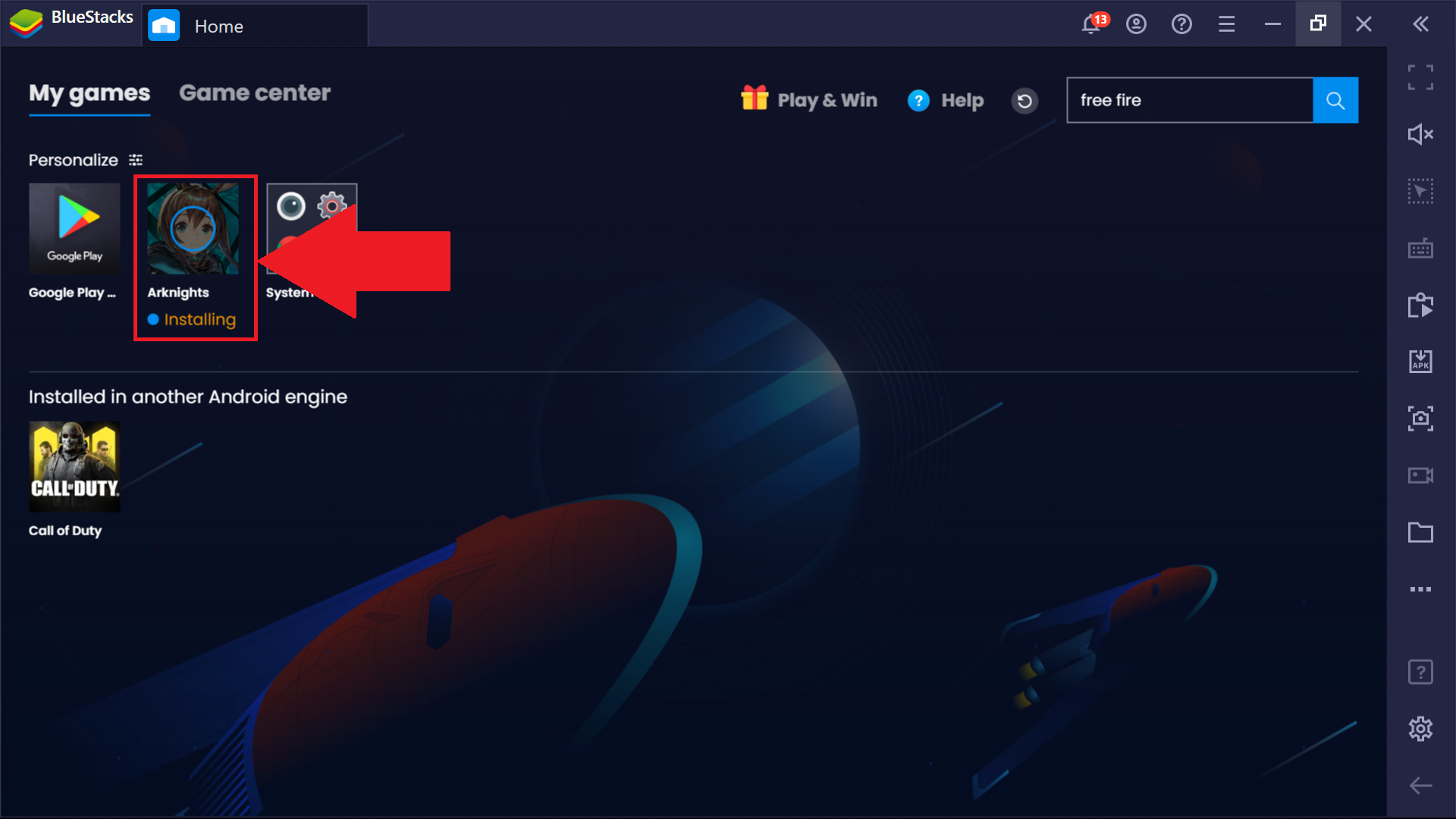
4. The app will now begin to install on BlueStacks.
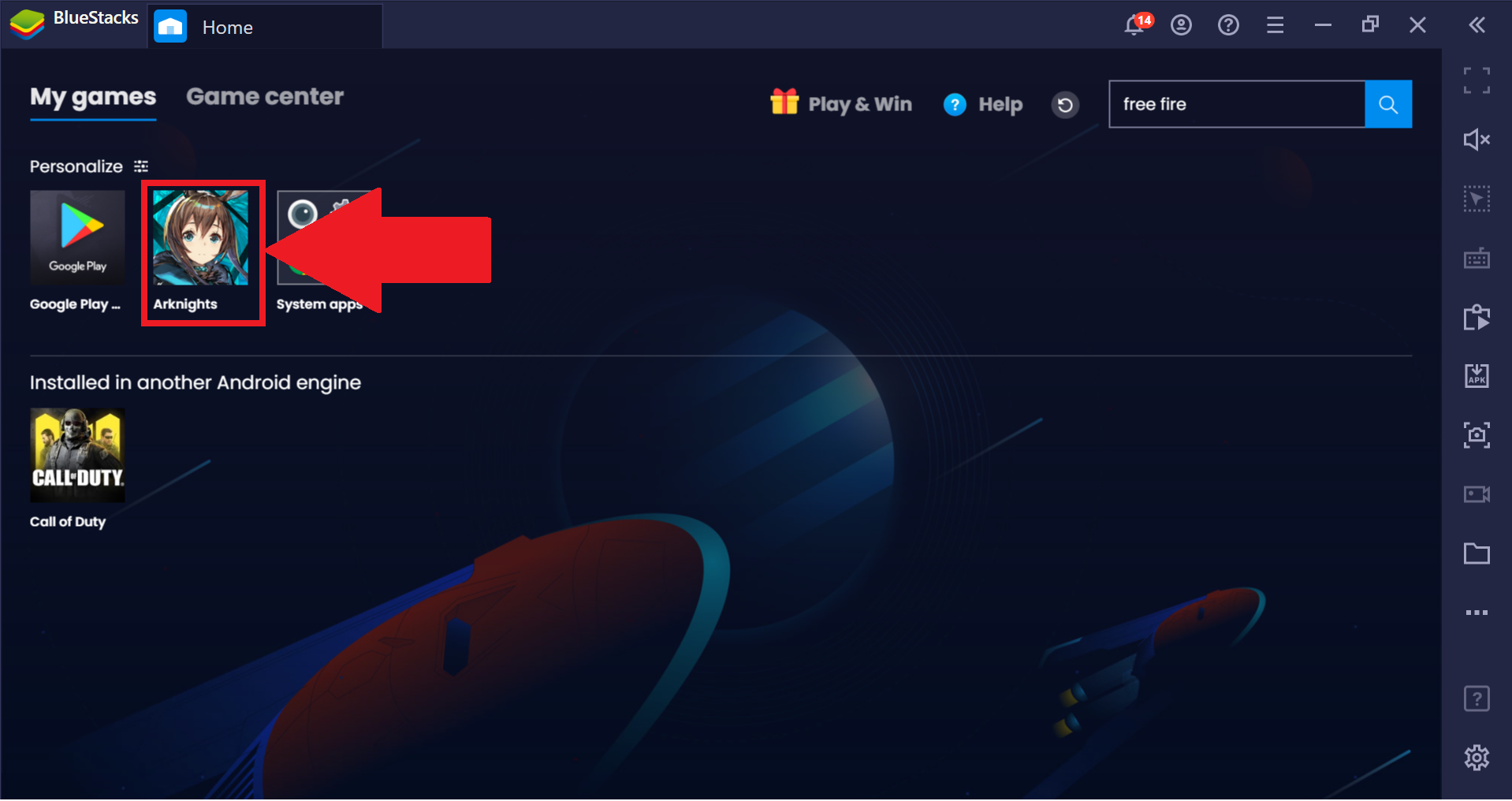
Once the installation process is over, you can open the app from the My games tab.
Installation through the Install Apk button
The steps for this method will vary according to the BlueStacks version you are one.
- If you're on BlueStacks 4.240 and above, click here.
- If you're on BlueStacks 4.230 and below, click here.
How can I use the "Install apk" button on BlueStacks 4.240 and above?
1. Download the .apk file for an Android app from any third-party site and launch BlueStacks on your computer.
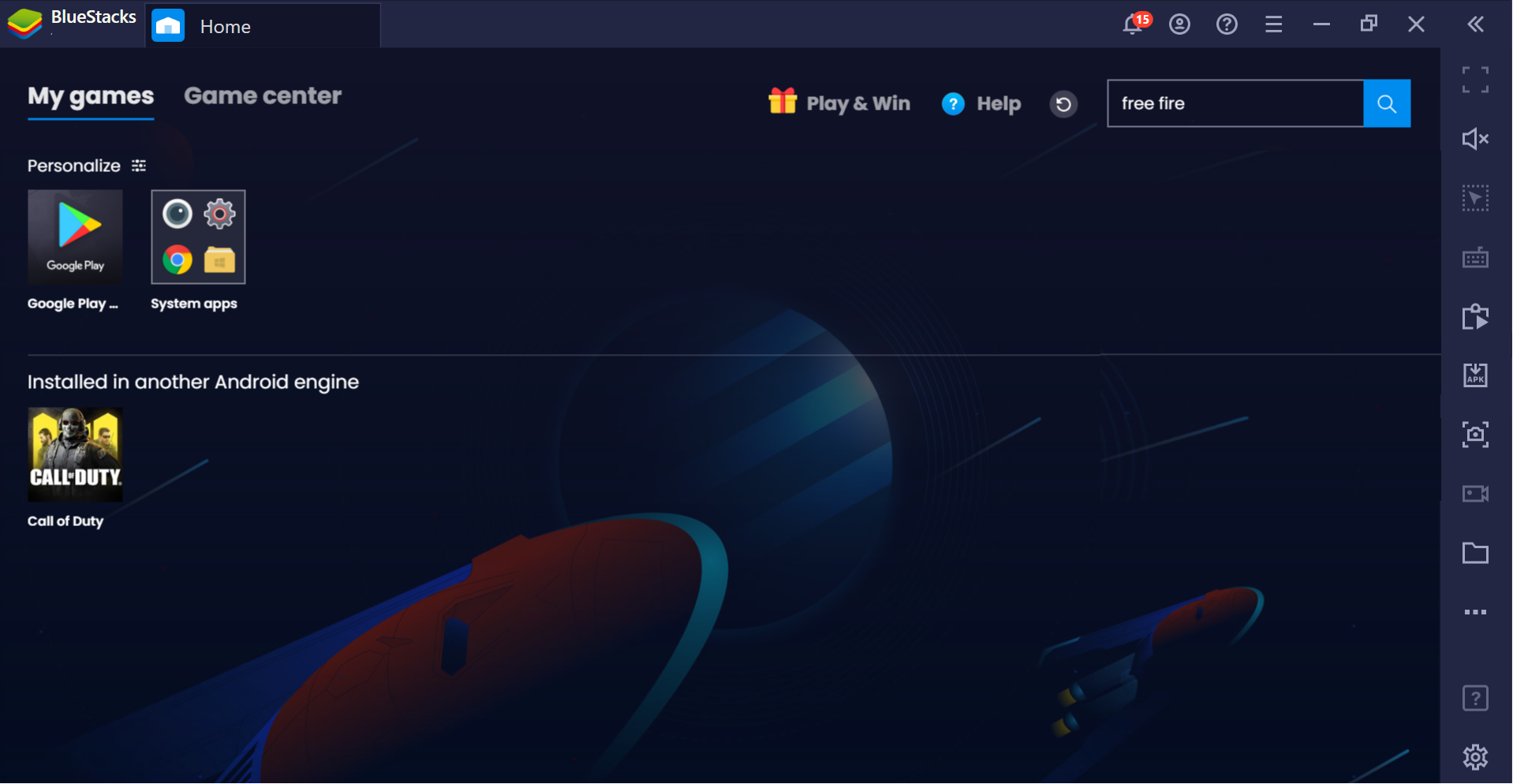
2. Now, press the Ctrl + Shift + B keys together or click on the Install apk button from the side toolbar, as shown below.

3. This will open up a Windows Explorer pop-up, from where you can navigate to the apk file for the app you want to install on BlueStacks.
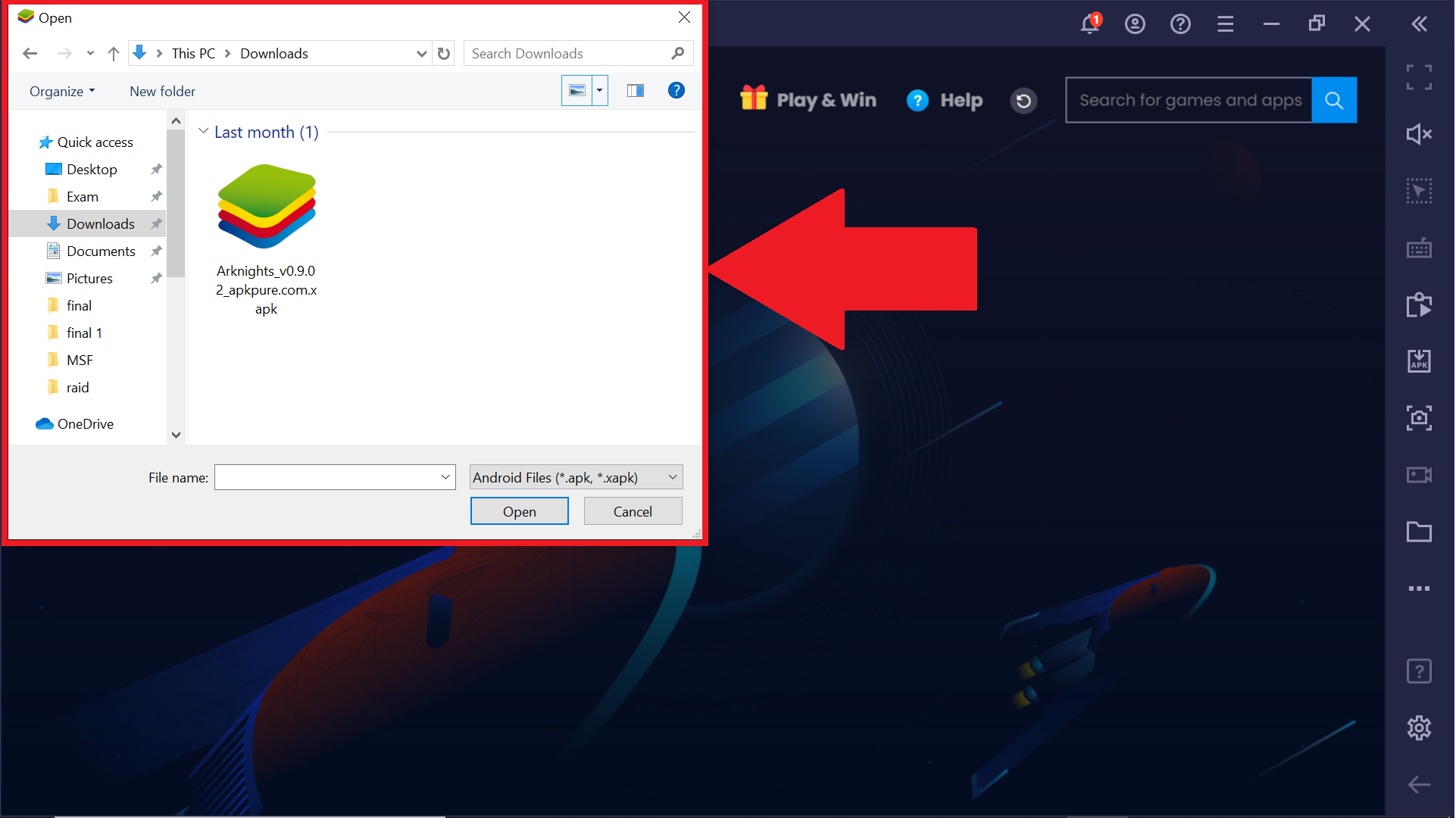
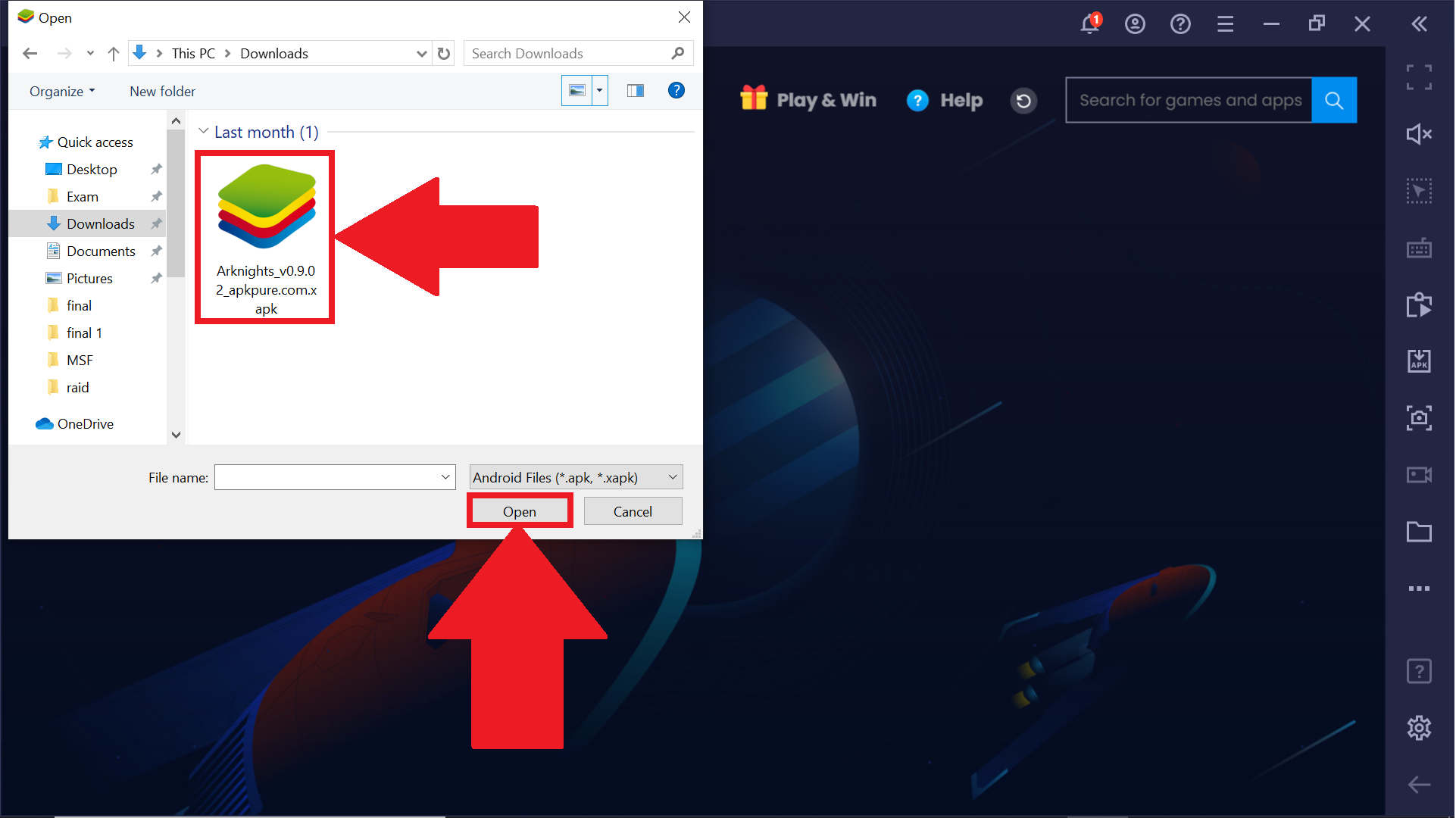
4. Once you find the .apk file for the app, either drag and drop it to BlueStacks or select it and click on Open.
5. The app will now begin to install on BlueStacks.
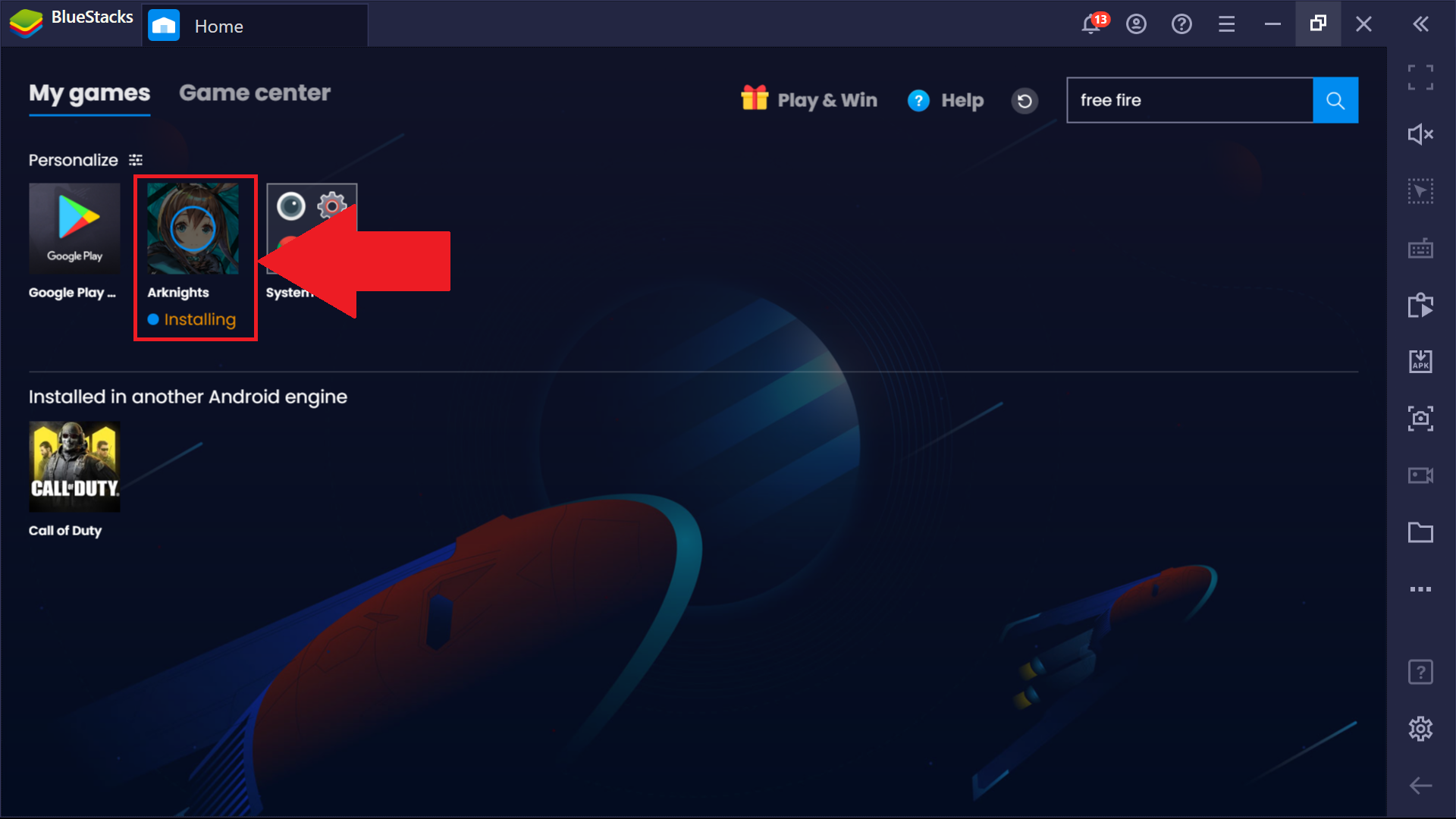
Once the app is installed, you can access it from the My games tab.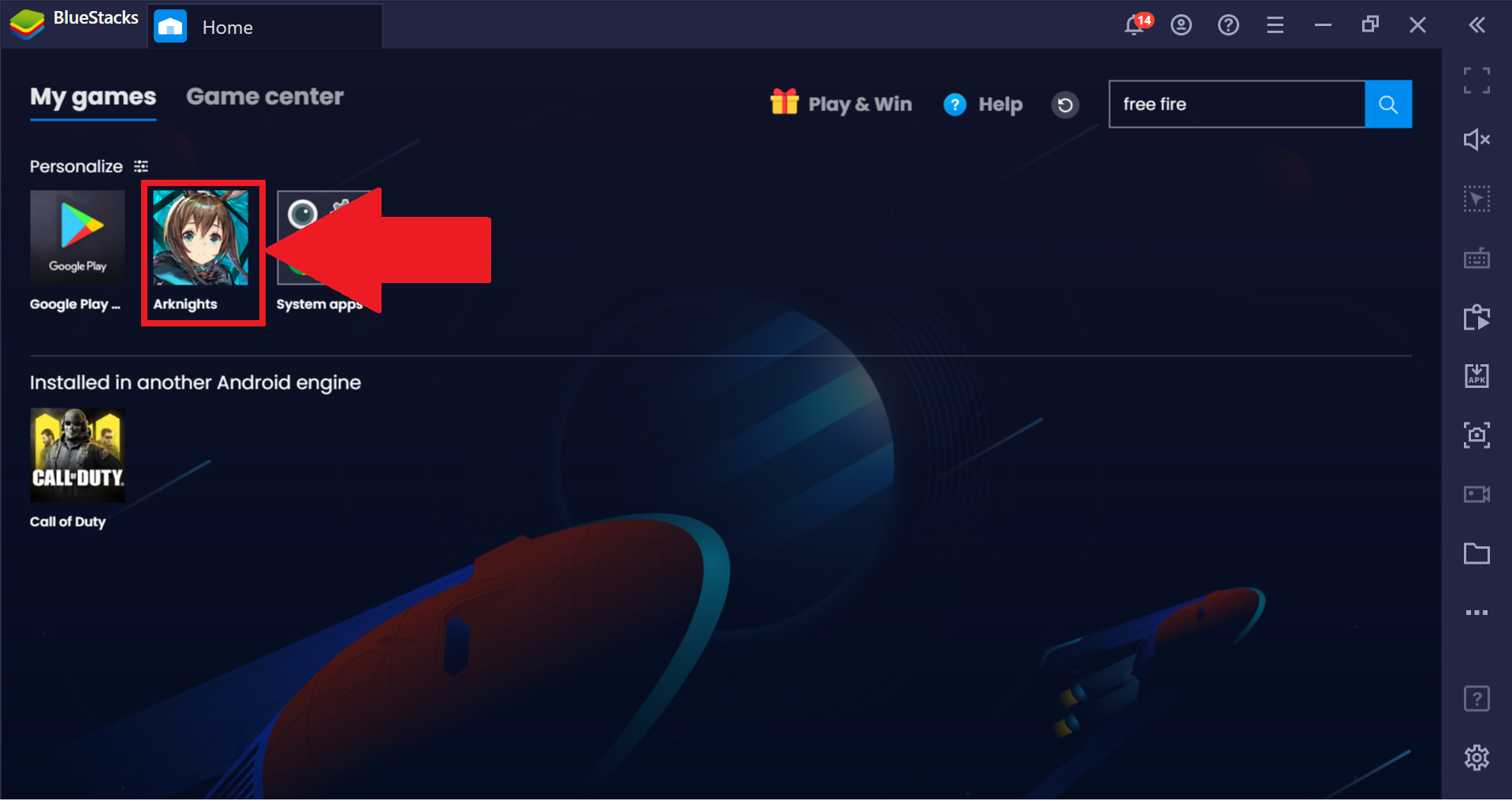
How can I use the "Install apk" button on BlueStacks 4.230 and below?
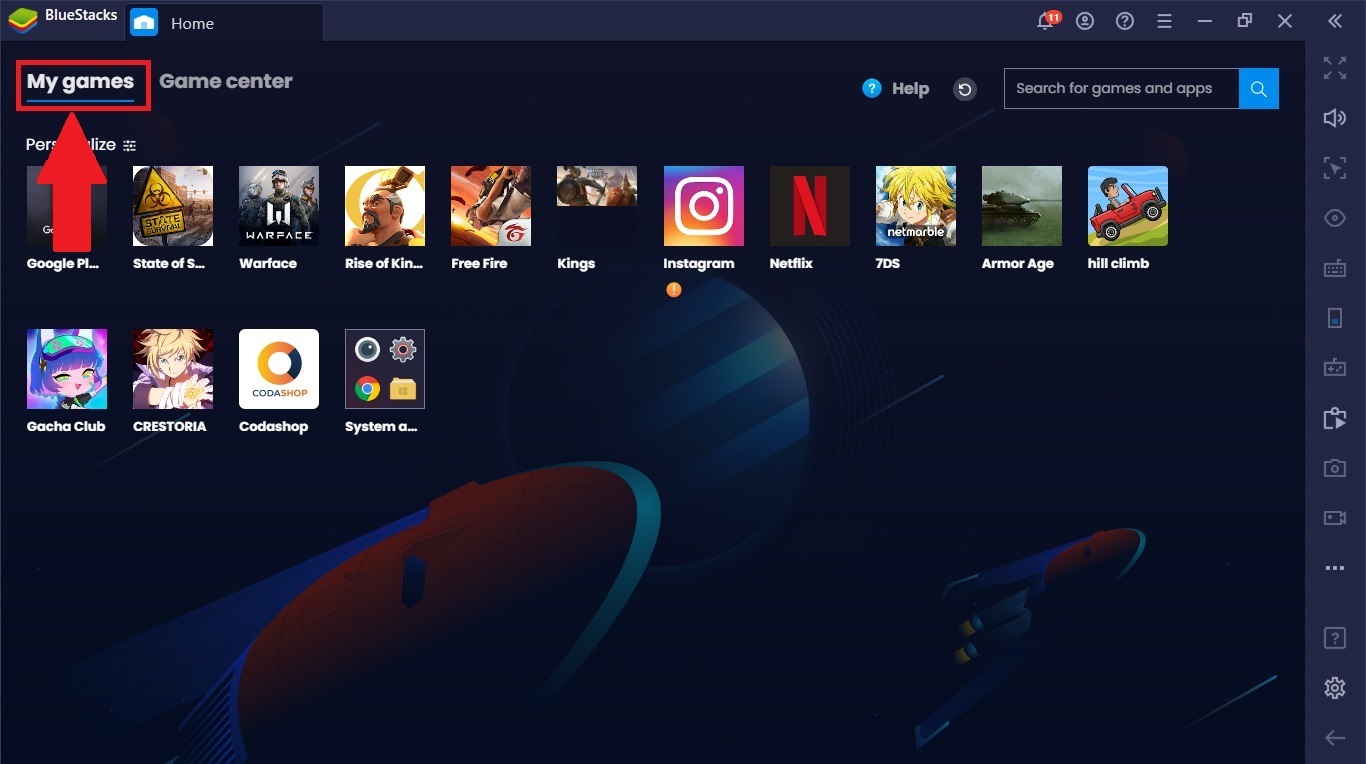
1. First download the .apk file for an Android app from any third-party site, and then go to the My games tab after launching BlueStacks.
2. Within the My games tab, click on the three bars given next to 'Personalize'.
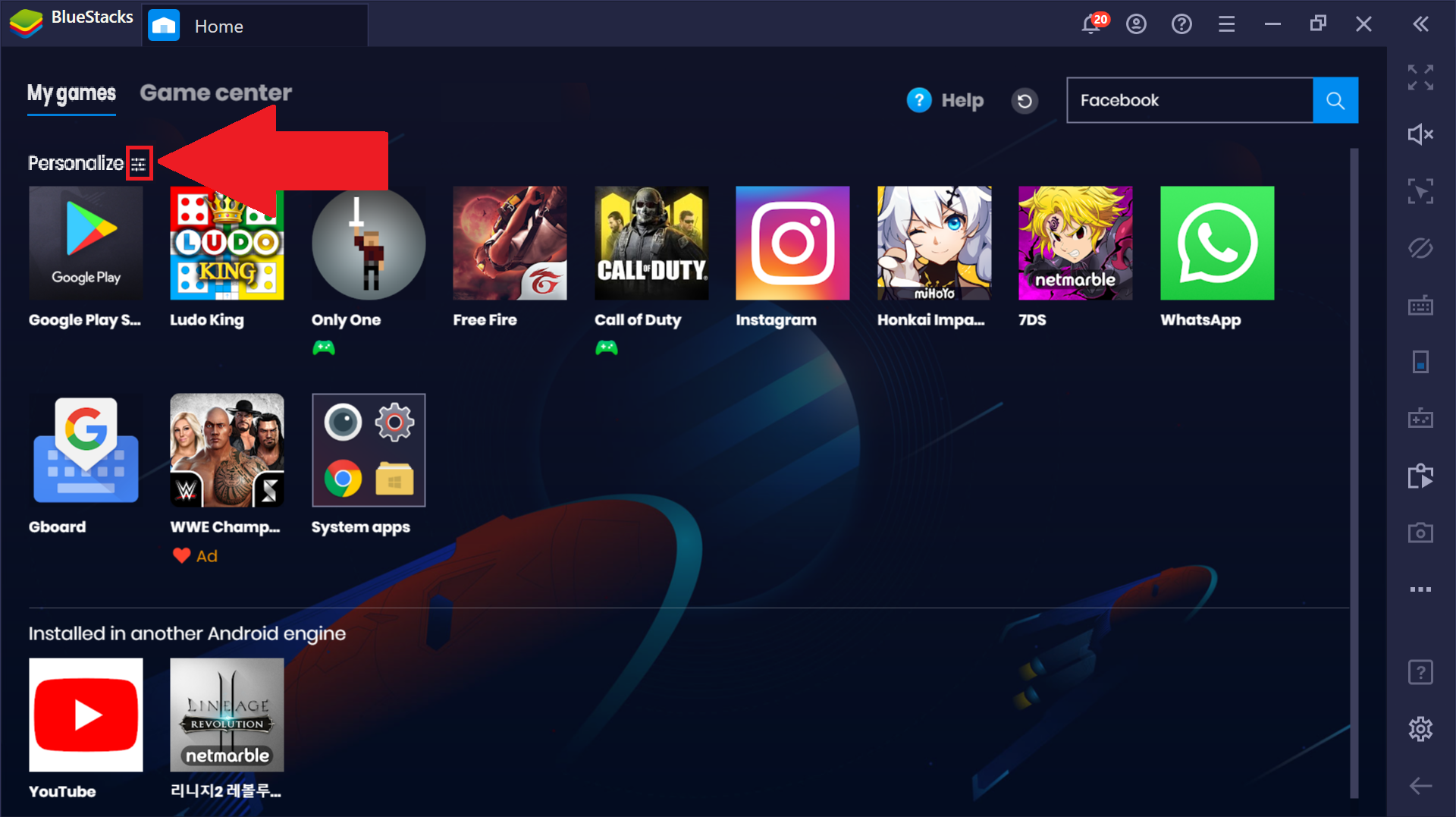
3. A list of options will pop open. Here, click on Install apk.

4. This will open up a Windows Explorer pop-up, from where you can navigate to the .apk file for the app you want to install on BlueStacks.

5. Once you find the .apk file for the app, either drag and drop it to BlueStacks or select it and click on Open.

6. The app will now begin to install on BlueStacks.
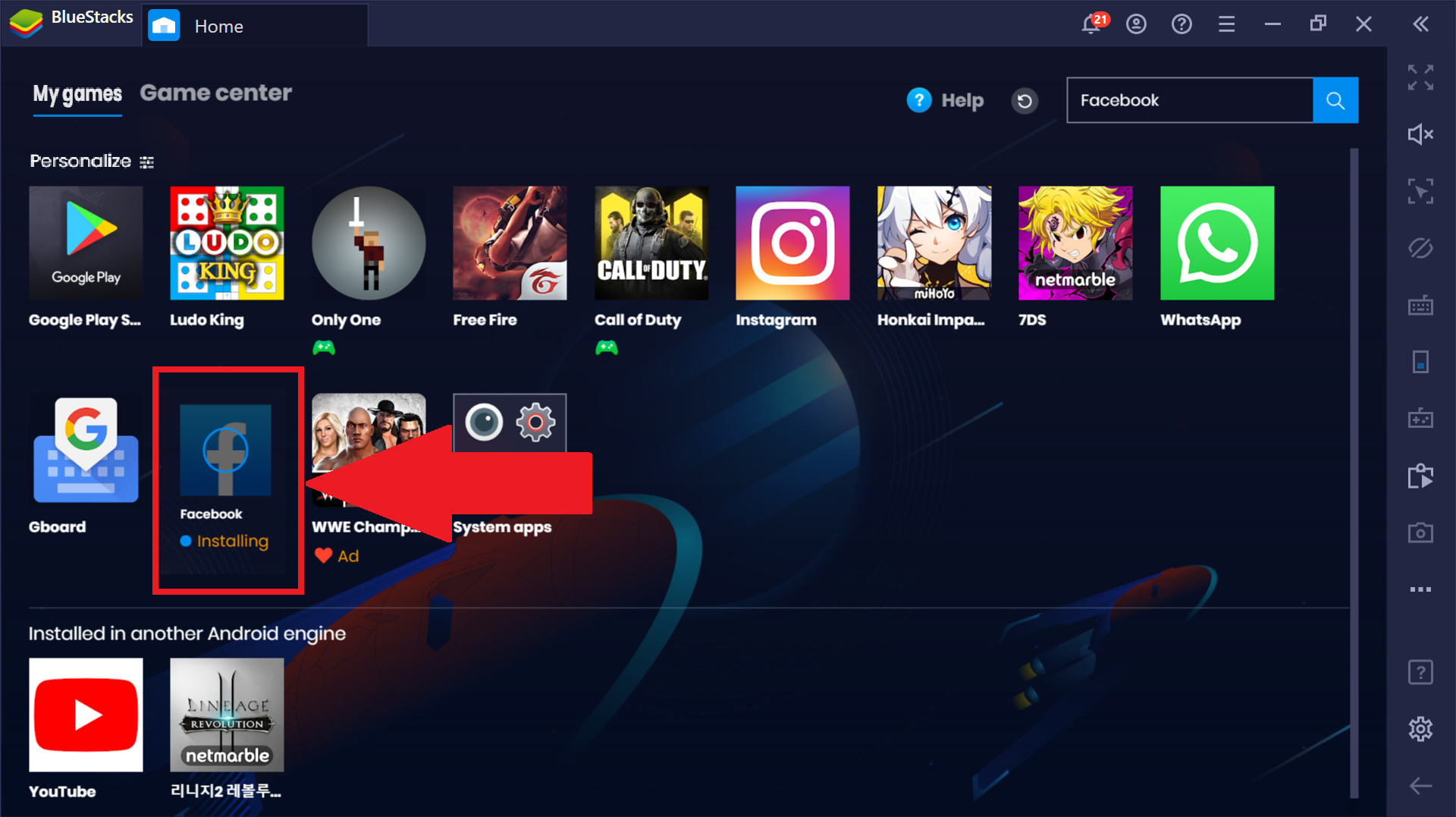
After it gets installed, you can access the app from the My games tab.

Thank you for choosing BlueStacks. We hope you enjoy using it. If you have any further questions, please contact us at support@bluestacks.com. Happy Gaming!
Last updated on Sept 28, 2020.