How will this help?
While using an app on your mobile device, you have to hold it in different positions in order to view the app in portrait or landscape mode.
Whereas BlueStacks lets you rotate an app to either of the modes with the click of a button. This article will teach you how to rotate an app to portrait or landscape mode.
How can I rotate an app?
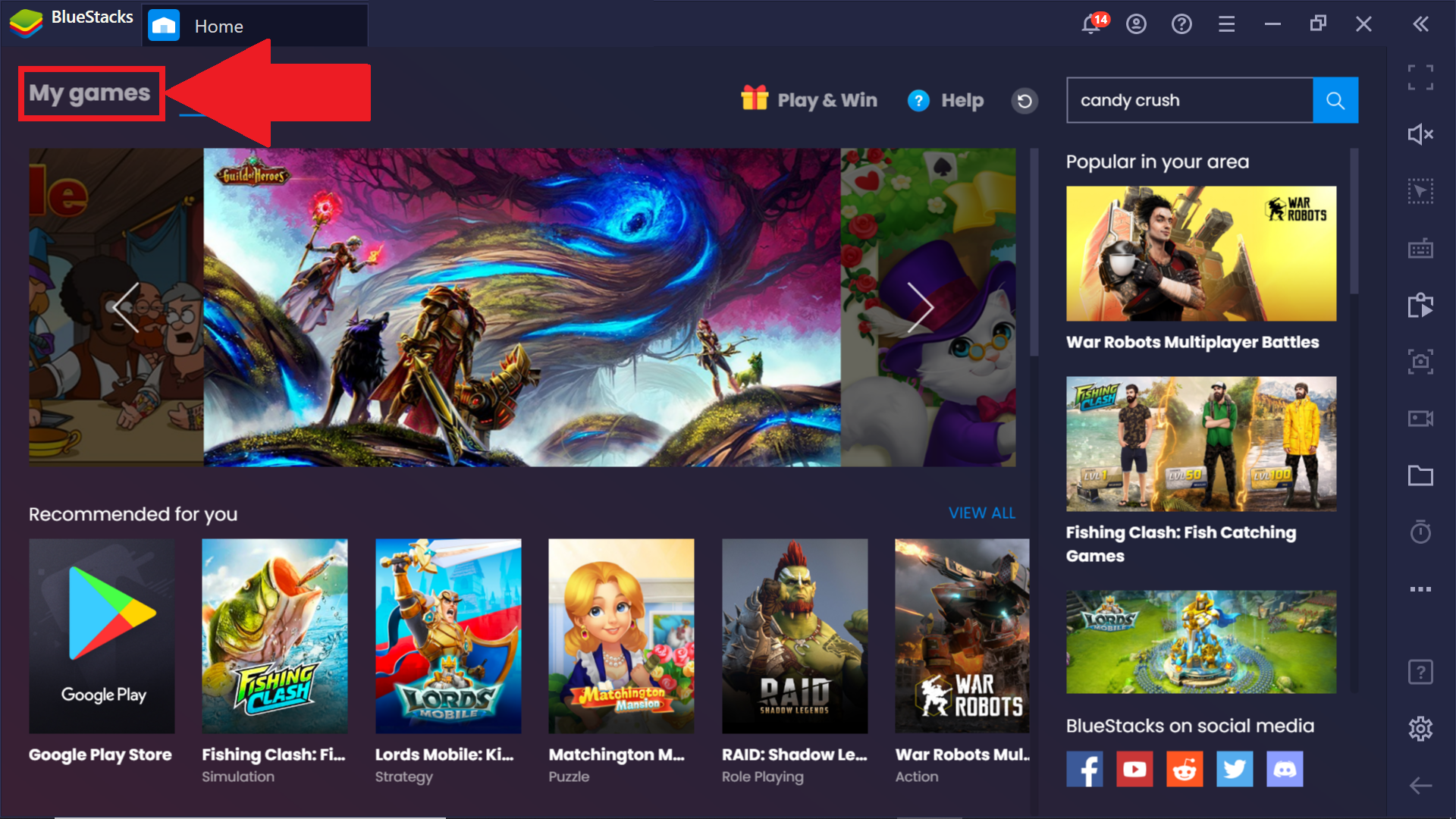
1. Launch BlueStacks and go to the My games tab.
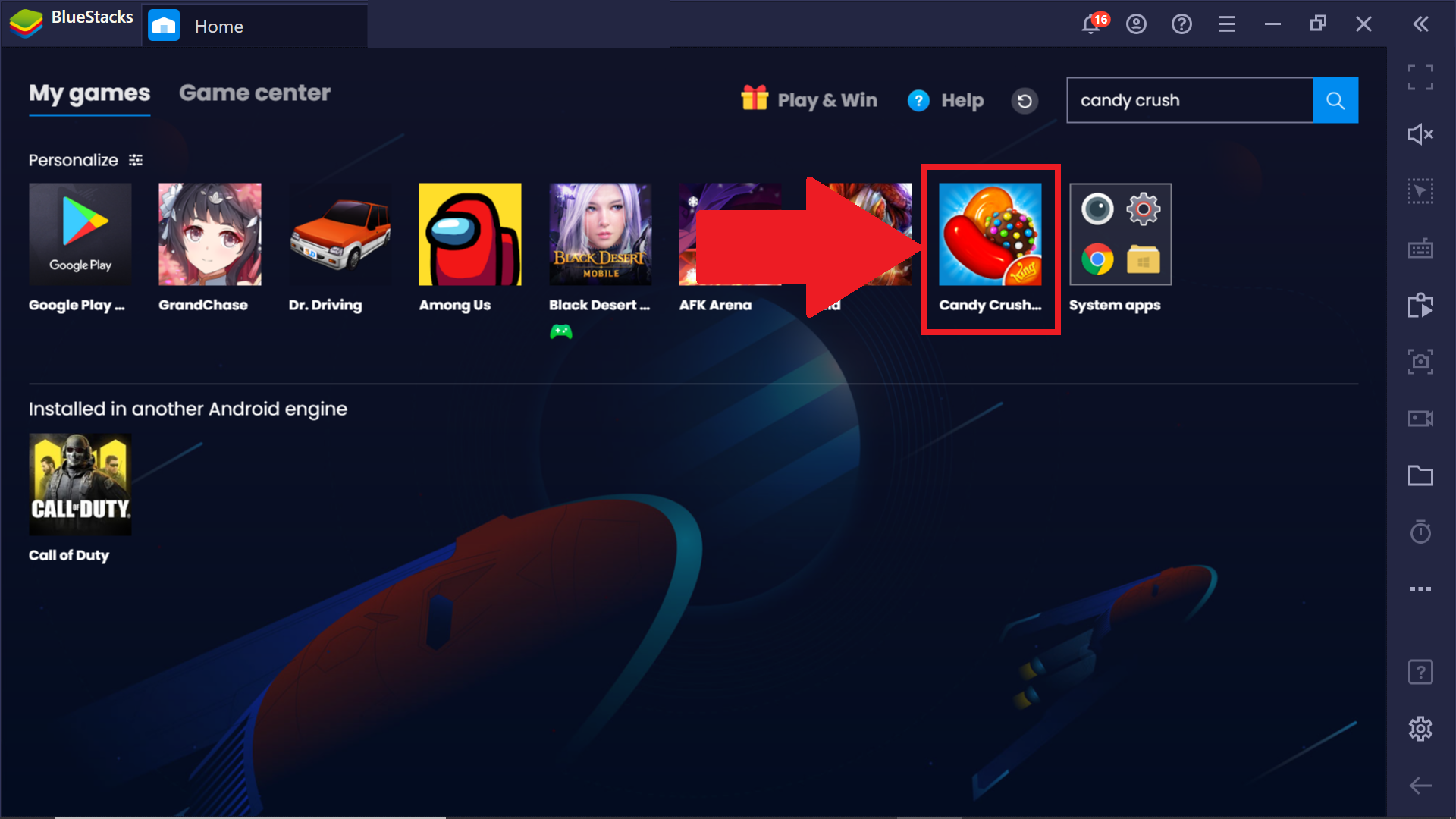
2. Here, open any app you would like to switch the screen orientation for. Let's take Candy Crush as an example.
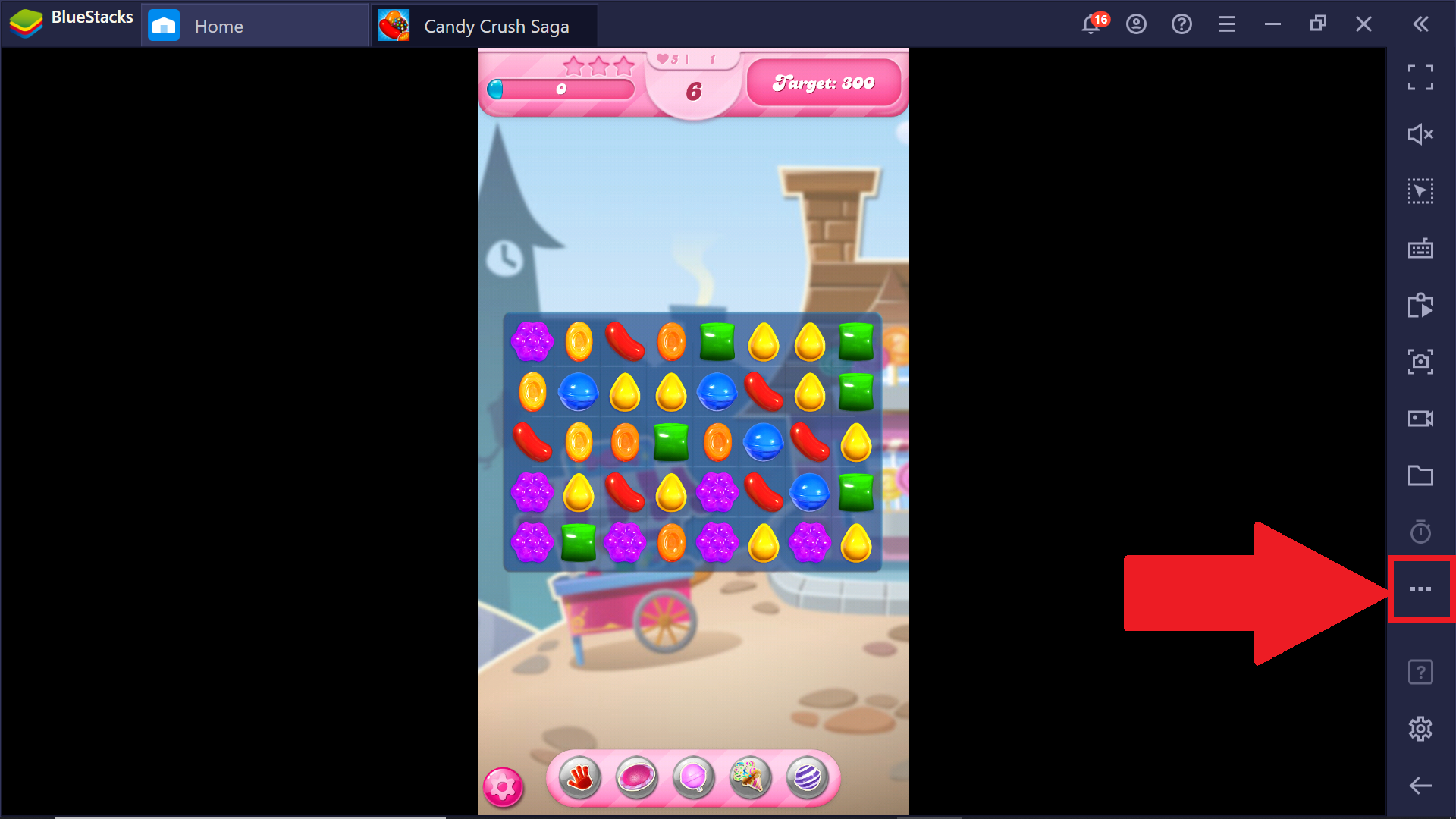
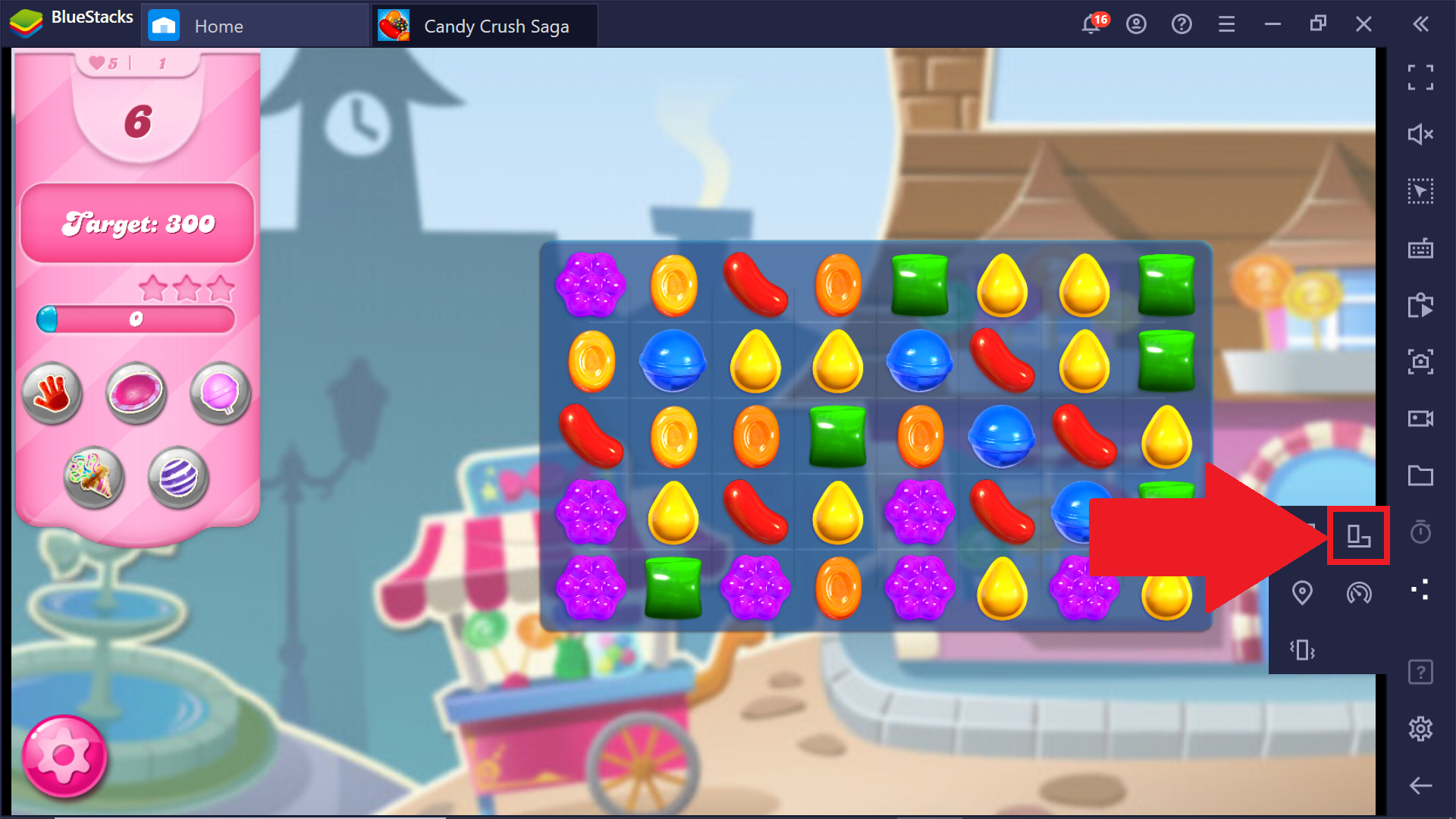
3. Once the app opens, click on the More tools button from the side toolbar.
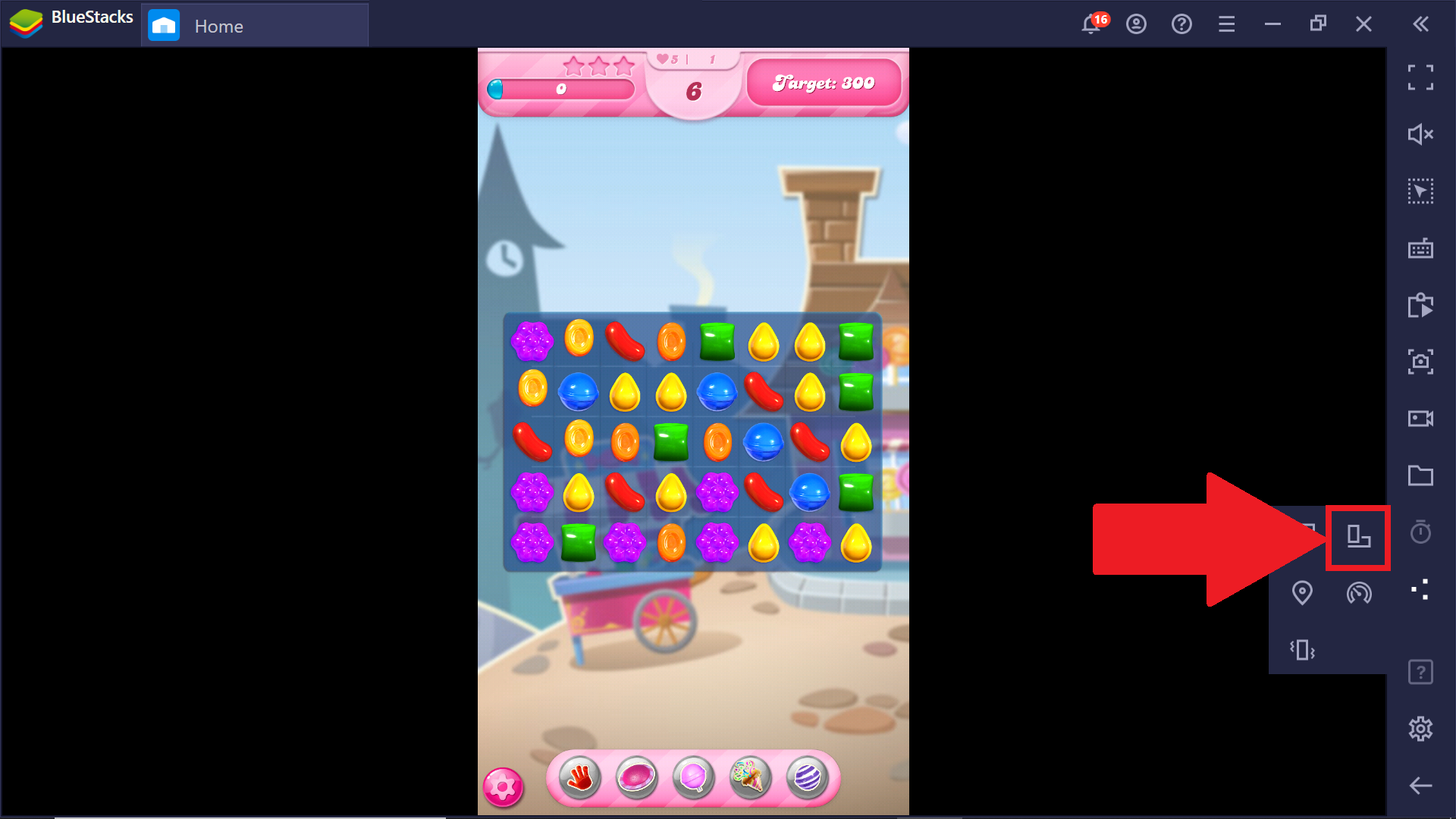
4. A pop-up menu will appear. Here, click on the Rotate tool, in order to rotate the app's screen. An alternate way to do this is by pressing the Ctrl + Shift + 4 keys together.
5. We have successfully rotated the app's screen to landscape mode. To rotate back to portrait mode, simply click on the Rotate tool or press the Ctrl + Shift + 4 keys together again.
NOTE: To make the BlueStacks home page always open in Portrait mode, you can refer to this article.
I'm on an older version of BlueStacks 4. What should I do?
If you're on an older version of BlueStacks 4, click here to learn how to rotate an app.
Thank you for choosing BlueStacks! We hope you enjoy using it. If you have any further questions, please contact us at support@bluestacks.com. Happy Gaming!
Last updated on Sept 7, 2020.